



Abstract
A Visual Basic for Applications program was developed for direct control of a Twister II robot using the Zymark ZyRobot_ICP. Direct control enables automated check-out of the robot, and automated measurement of the plate stacks prior to a robot run. Normal operation of the robot program is performed with just two buttons.
Introduction
The Zymark Twister II is one of a class of low-cost cylindrical stacking laboratory robots used for shuttling microplates to and from laboratory devices such as plate readers, washers, and pipettors. A key advantage of these robots is that they come pre-configured with a plate gripper, high-capacity plate storage, and execution software.
The Twister II comes with CLARA, a process executive which can handle multiple robots and parallel processes, but which is much more powerful than what is required to sequence a stack of plates through a plate reader. CLARA is what the user sees, but it is Zymark's instrument control program for the TwisterII, ZyRobot_ICP, which is the TwisterII-specific portion of the overall software installation. Thanks to Zymark's technical support, it was revealed that this ZyRobot_ICP can be controlled directly from Visual Basic for Applications, and basically any sort of scheme for robot motion, and sequencing can be executed.
This technical note describes the integration of a simple system that reads plates on a Molecular Devices Analyst HT. The Analyst previously was configured with an integrated stacker system, but the robot was introduced to increase the plate capacity to 80 plates and resolve incompatibilities with the Analyst barcode reader. Beyond the basic functionality, the goals of the integration were a simplified user interface, the elimination of wasted robot moves, and the addition of a pre-execution system checkout.
The system is currently configured with three stacks, each with a capacity of 40 shallow well microplates. Stack 3 is only used as an output or destination stack, and stack 1 is only used as an input or source stack. Stack 2 can be used first as a source, and then as a destination. The user doesn't enter the number of plates, or their location, because the robot determines these during the checkout procedure. The robot begins processing with stack 2, and when that is moved to stack 3, proceeds with the processing of stack 1.
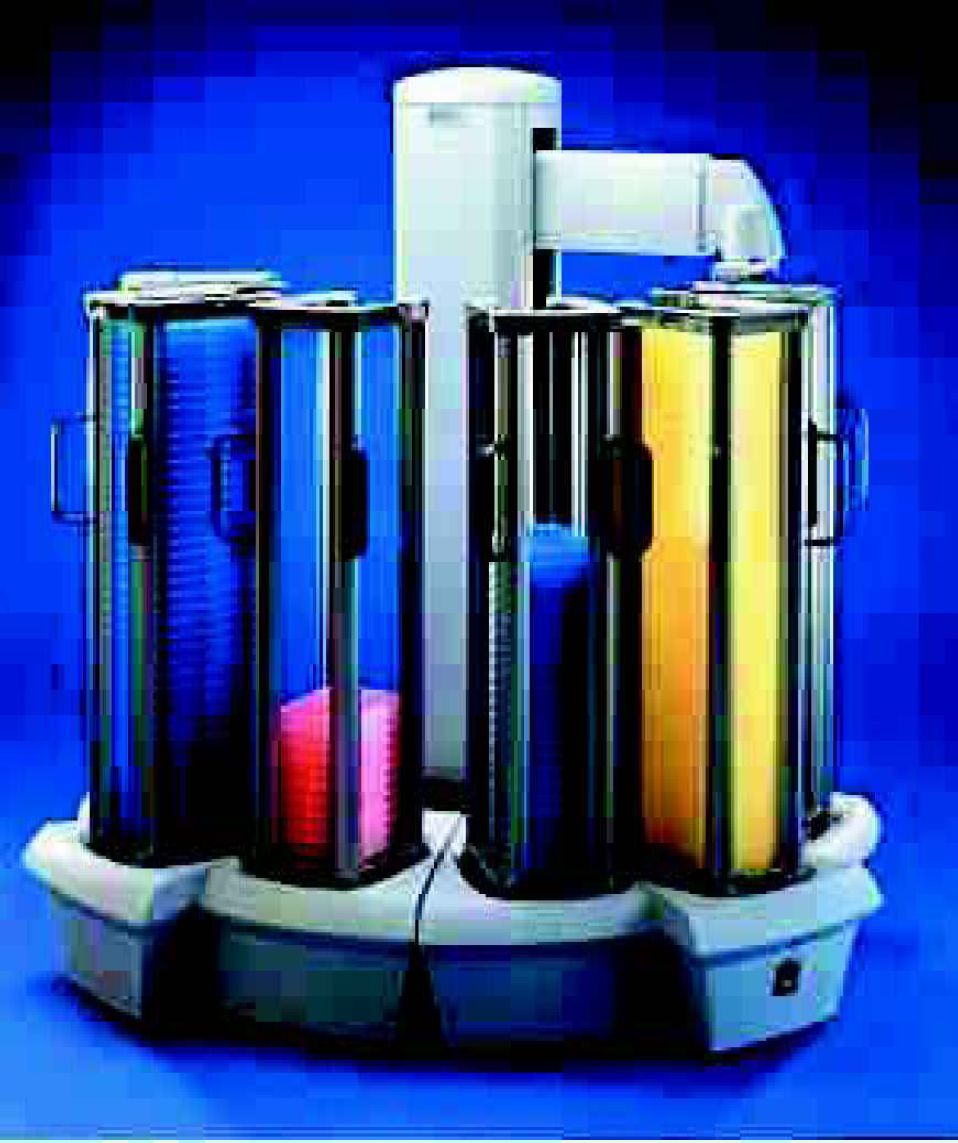
Twister II
USER INTERFACE
The main user interface (figure 2) for the robot has two buttons used in normal operation: home robot and run checkout, and read plates with robot. Two additional buttons, home robot open gripper, and initialize robot are only used in debugging, and error recovery. See figure 2. Note that manual operation of the Analyst reader is also integrated into the user interface. A secondary form manages the Analyst ActiveX control to create, and edit plate reading protocols. In addition to these forms within the application, the ZyRobot_ICP includes an independent graphical user interface (GUI) that is used for manual control of the robot axes, and to define new robot positions. This GUI also contains the entry point for editing of the detailed robot control code within the ZyRobot_ICP.
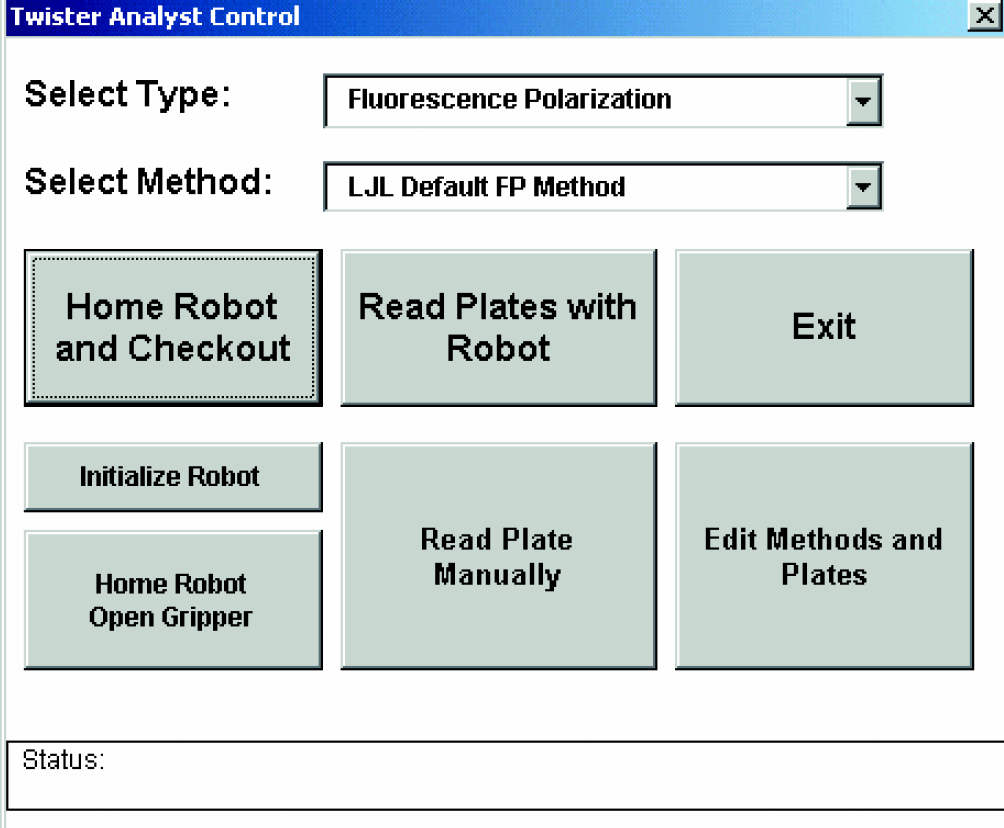
Main User Interface
STRUCTURE OF THE CODE
The VBA code is divided into three modules within the workbook, and four modules within the VBA interface of the ZyRobot_ICP. Within the workbook, the modules are RunAnalyst, RunRobot, and Parser. On the ZyRobot_ICP side, there is a built-in robot module, and user-defined “resources” or modules. For this project the robot resources were defined as T2StorageRack, Barcodereader, and LJLAnalyst. When a resource is created in the ZyRobot_ICP GUI, a module is created for it containing standard robot motion methods used by CLARA: GetFrom, PutTo, Approach, and Clear. These existing methods can be edited, or new methods can be added, and called from the Excel VBA.
BASIC OPERATION
Once the microplates are loaded, the first step for the user is to click [home robot and checkout] to start the checkout process. Past experience has shown how helpful a checkout sequence can be in eliminating preventable failures in a robot cell. These failures can be more than a nuisance if they occur just after a scientist starts up the robot, and heads for the door in the afternoon.
Checkout performs the following functions:
confirms communications with the Analyst, and ejects the Analyst plate tray
creates the robot and barcode object instances
moves the Twister to the barcode reader, and reads a bar code on its gripper finger
checks that the Analyst tray is empty by moving the robot down onto the tray
measures the input stacks on the Twister II, and saves the heights
confirms that stack 3, the output stack, is empty
Once checkout is complete, clicking the [read plates with robot] button brings up a message summarizing the checkout process, the number of plates found in each stack, the status of the barcode reader and Analyst, and the reader method that was selected. See figure 3. This gives the user one last chance to catch mistakes in the plate loading, or method selection. The robot will not run unless checkout has run successfully.
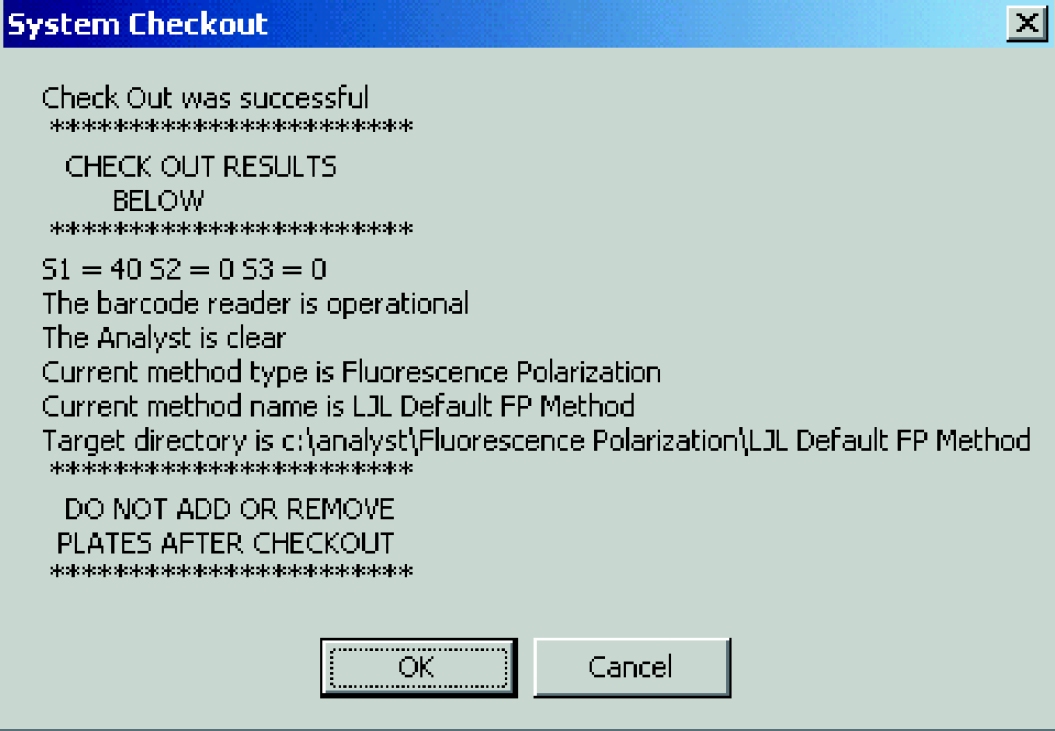
Checkout Message Box
Once the readstacks function is given the go-ahead, it sequences through the stacks of plates, by loading stack 2 onto stack 3, and then stack 1 onto the now empty stack 2. During the run, the flexibility of the VBA sequencing is used to go beyond the GetFrom, Approach, PutTo and Clear. For example, the robot waits just over the reader tray while the reader scans the plate, and quickly retrieves it when it is ejected.
At the end of the stack operations, the arm is moved to a convenient park position, which was chosen to clear the stacks, and allow easy user access.
Upon completion of a robot run and plate file parsing, notepad.exe is shelled with the robot_log.txt file to allow the user to review the results of the robot run. At this point any unreadable barcodes can be manually read, and their report files can be renamed before upload to the data management system.
ROBOT INITIALIZATION
The first step in implementing Twister II control in VBA is to create two robot-related objects:
TESTING FOR A MISPLACED PLATE
Once initialized, these objects, oServer and oRobot, are used to control the TwisterII. See figure 4 for a view of the robot-server object. Native methods for the robot can be accessed directly through the standard object “dot” notation and the
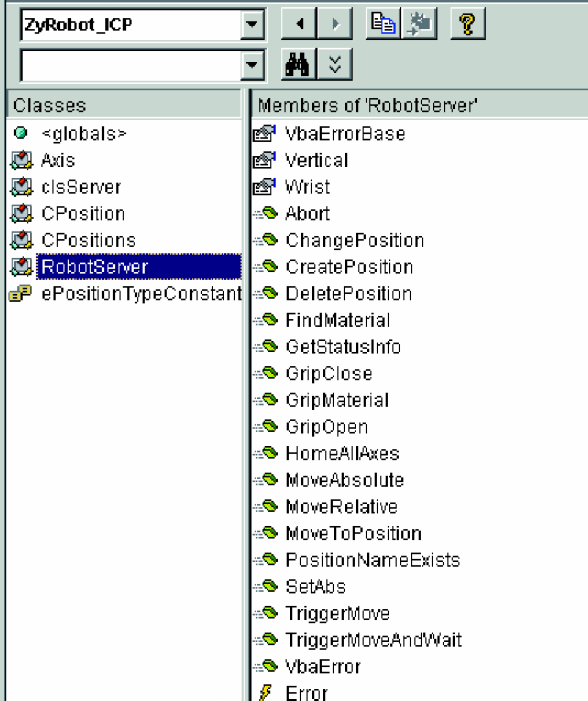
Robot Server Object
Within the LJLAnalyst module of the ZyRobot_ICP VBA, the TestTray procedure itself is defined:
MEASURING THE STACKS
One goal of the program was elimination of the requirement to tell the system how many plates will be run, and where they are located. As simple as it seems, users often will enter the wrong number of plates, load the wrong number in the wrong stack, or forget to clear the output stack. In this system, the robot counts the plates in each stack before beginning. Once the stacks are measured, the robot can reliably move at full speed into input stacks and output stacks with little chance of a crash. The Measure_Stacks function within the Excel VBA is called during checkout, and uses a custom procedure defined within the T2Storage module of the ZyRobot_ICP VBA. The stack can store 39 to 41 plates depending on the plate manufacturer, and the m_UnitHeight value can be fine tuned based on the consumable type so that the robot calculates the correct stack height during the measurement process.
Conclusions
The Zymark ZyRobot_ICP is demonstrated to be a flexible tool for controlling the TwisterII using VBA. The VBA environment enables a simple, unified user interface for custom automation of the ZyRobot_ICP and the Analyst ActiveX Control.
Acknowledgements
Thanks to Kurt Grice of Zymark for providing me with an introduction to the internals of the ZyRobot_ICP. Thanks to Rick Johnstone of SPRI for help in debugging, and thanks to Bob Firman of SPRI for answering my various VBA questions.