In this article, we illustrate the sendemails command, which allows users to automatically send emails with Stata through PowerShell. Researchers can use this package to perform several email tasks, such as contacting students or colleagues with standardized messages. Additionally, researchers can perform more complex tasks that entail sending randomized messages with multiple attachments from multiple accounts; these tasks are often necessary to conduct correspondence audit tests. This article introduces the sendemails command and illustrates multiple examples of its application. The online appendix discusses an application of this package to correspondence audits.
In this article, we introduce a new command, sendemails, that allows instructors, researchers, or students to send emails through Stata to benefit their pedagogical or scientific tasks.
Stata is a powerful software package for data science that can be adapted to send messages. To present, only limited and sparsely documented resources have been provided for this purpose. Some contributed do-files allow users to send messages from specific email providers,1 but their customization can be complicated and time consuming for people with limited programming skills. Some users have prepared dedicated packages to simplify the process of sending emails; a good example is psemail by Zhang, Cui, and Li (2013). However, these early packages have some limitations; for example, they do not allow HTML input,2 they do not allow sending multiple attachments, or they do not include standard email options such as delivery notifications and priority.
sendemails overcomes these limitations. It is a simple, general, and flexible tool that can be used by anyone. It allows several useful applications such as sending multiple emails to students or colleagues. For example, the user can send personalized emails to students with their exam grades or send a message to people in a mailing list. Our package can send one email at a time within a short period, thus overcoming the limit on the maximum number of recipients per email usually set by the email provider. Outlook, for instance, imposes a limit of 500 recipients per message. With sendemails, the only constraint is the maximum quantity of recipients allowed per day, which is 5,000 in Outlook’s case. Moreover, sendemails allows sending emails with attachments (for example, tables and figures) after the completion of tasks that can take several days. In this regard, sendemails offers features similar to other packages, such as sendtoslack (Wursten 2017), which sends messages through Slack, and statapush (Schpero and Jambulapati 2016), which sends messages through Pushbullet, Pushover, or IFTT.3
sendemails allows users to send messages from different addresses, which might be useful for various reasons. For example, for different projects, the user could correspond with different emails (for example, a personal email address, the former affiliation address, and the current affiliation address). For this, sendemails can be very useful to conduct online experiments such as correspondence audit tests. For more details and an example of the specific application of sendemails to correspondence audit tests, please see the online appendix.
sendemails requires tknz to be installed. This package tokenizes strings into tokens and stores the results in the local macros. tknz was developed and discussed in Elliott (2002).
In the following sections, we discuss the details of this command and provide examples to help the reader better understand the proper usage and full potential of sendemails.
2 A command for standardizing and automatically sending email: sendemails
2.1 Syntax
sendemails uses Windows PowerShell to send emails.
The argument of the command sendemails is recipient@email.com. The argument specifies the recipient of the email, and it cannot be omitted. When multiple recipients are included, they must be separated by semicolons without any blank spaces (for example, luca@myemail.it; stefano@hisemail.co.uk is not allowed by the underlying PowerShell cmdlet; more details are provided below).
2.2 Options
Options are organized into five subsections.
2.2.1 Main options
subject(string) declares the email subject. subject() is required.
ufile(string) gives the location and filename of the user’s email address saved as plain text in a .txt file. The default location is the working directory. The file extension is optional. ufile() is required.
pfile(string) gives the location and filename of the user’s password saved as plain text in a .txt file; the default location is the working directory. The file extension should not be included. The user does not have to enter the actual password and username inside pfile() and ufile(); rather, the user should write locations and filenames of the two .txt files from which sendemails will extract the username and password. pfile() is required.
from(string) is the name of the sender. The default parameter value is the email username.
body(string) specifies the body of the email to be sent. The body should be input as one string with blocks of text being parsed by |. Each substring separated by | will be numbered and modified using HTML wrappers if specified. Text inputted as line1|line2|line3 will be treated as three separate blocks of text and numbered 1, 2, and 3. body() cannot be invoked when htmltxt() is specified.
mailps(string) gives the name of the .ps1 file. The default is mailps(mailps.ps1). A .ps1 file contains PowerShell commands. This file can be used to double-check the details of the message being sent (for example, subject, body and line breaks, and recipient).
psloc(string) gives the folder location (and name) where the .ps1 file will be saved. By default, the file is stored in the working directory.
2.2.2 Attachment options
attachment(string) gives the location and name of the files to be included as attachments to the email. The file extension must be included; alternatively, if there is no file with the same name, the user can type .* in place of the extension. If the location is not included, Stata looks for the attachment in the working directory. When multiple files are included, they must be separated by semicolons without any blank spaces (for example, lucapaper.pdf; Stefano.* uses the semicolon but includes a blank space, so it is not allowed).
folder(string) gives the folder location of all the attachments the user wants to send at once. If the user wants all the files in the folder, the user must type \*.* after the folder name; for example, if the folder is called robe, then string = working_directory_path\robe\*.*. If the user wants only the files with a particular extension, the second * must be substituted by the extension. For example, if the user wants to attach all the .pdf files from a folder that also contains .dta files, .doc files, etc, the user should type .pdf; assuming the folder is called robe, then string = working_directory_path\robe\*.pdf. The user cannot specify attachment() when folder() is specified.
2.2.3 Formatting options
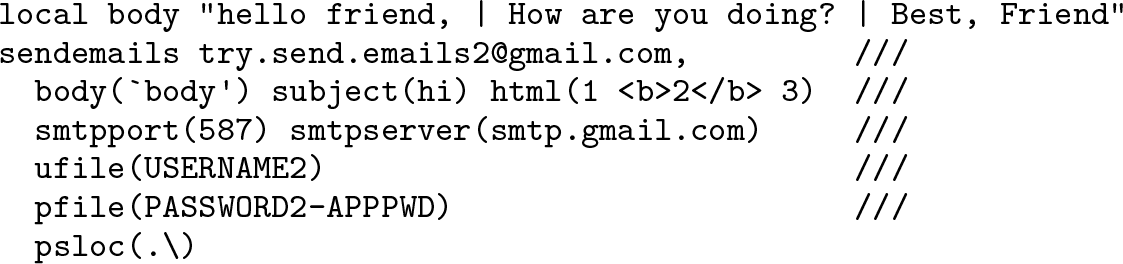
html(string) provides the HTML to be included in the email; this HTML modifies the appearance of the text provided in body(). Because each block of text parsed by |in the body is numbered, the HTML code should be provided as wrappers around these numbers. Users should input a string where HTML wrappers are placed around numbers, with each number representing a substring of the body. For example, <i>1 <b>2</b></i> 3 4 makes all text in substrings 1 and 2 italic and all text in substring 2 bold. html() must include a number for every substring. If there are four inputted substrings and html() takes input <b> 1 </b> 2 3, then the fourth string will be missing from the email. The user can create paragraphs using html() or using paragraph(). html() cannot be specified when body() is empty.
paragraph(numlist) provides paragraph breaks between substrings parsed by | in body(). The input to this option should take the format of a numbered list; for example, paragraph(1 3 5) creates a new paragraph following substrings 1, 3, and 5. paragraph() cannot be specified when body() is empty.
htmltxt(string) provides the location of the .txt file with the HTML message to be included in the email. htmltxt() cannot be specified when body() is specified.
encode(string) is the encoding option. PowerShell allows the following parameters: ASCII, BigEndianUnicode, BigEndianUTF32, OEM, Unicode (default), UTF7, UTF8, UTF8BOM, UTF8NoBOM, and UTF32. PowerShell allows abbreviated parameter names until the parameter is no longer unambiguous; cases do not matter. Beginning with PowerShell 6.2, encode() also allows numeric IDs of registered code pages or string names of registered code pages. For more information, see the .NET documentation for Encoding.
2.2.4 Sending options
smtpport(string) gives the SMTP port number. The default parameter value is the Outlook port.
smtpserver(string) gives the SMTP server address. The default parameter value is the Outlook server.
cc(string) is the email address included as a CC to the email. When multiple CCs are included, they must be separated by semicolons without any blank spaces (for example, luca@myemail.it; stefano@hisemail.co.uk is not allowed).
bcc(string) is the email address included as a BCC to the email. When multiple BCCs are included, they must be separated by semicolons without any blank spaces (for example, luca@myemail.it; stefano@hisemail.co.uk is not allowed).
sleep(string) is the time gap between multiple emails sent in sequence (for example, through a loop). The default parameter value is 3,000 milliseconds (that is, 3 seconds).
notification(string) provides feedback about delivery status. As allowed by Power-Shell, it can be set to None (default), Never, OnSuccess, OnFailure, Delay, or any combination of the last three parameter values (for example, OnSuccess, Delay). PowerShell allows abbreviated parameter values until the parameter is no longer unambiguous; cases do not matter.
priority(string) sets the message priority. PowerShell allows the following options: Normal (default), High, or Low. PowerShell allows abbreviated parameter values until the parameter is no longer unambiguous; cases do not matter.
nossl specifies that the secure sockets layer to establish a connection is not used.
2.2.5 Reporting options
report displays a summary of the email with sender and receivers, email options (that is, priority(), notification(), and encode()), optional metadata (that is, psloc(), mailps(), PowerShell time-out, error option), and the time and date of the email. When email options and metadata are not set by the user, this report lists the default options.
erroroption(string) tells PowerShell what to do in case of an error. The following options are allowed: Stop, Inquire, or Continue (default). Differently from other PowerShell options, no abbreviations or different combinations of capital and lowercase letters are allowed to prevent mistakes; the only allowed exception is the usage of lowercase letters only. When Continue is chosen, if PowerShell detects an error, it does not stop and it does not display any message. When Stop is chosen, if PowerShell detects an error, it stops and displays an error until the user manually closes the PowerShell window. When Inquire is chosen, if PowerShell detects an error, it stops and inquires on what to do, that is, either Stop or Continue—additional parameters being provided are useless in this context but are provided by default by PowerShell and cannot be omitted by us; after the user responds to the inquiry, PowerShell automatically closes its window.
errormessage(string) is the name of the .txt file where the error message should be written by PowerShell. The error message transcribed in that file is the same as the one that would be displayed in the PowerShell window. The default is errormessage(errormessage). While the PowerShell window does not display the error message when erroroption() is Continue, the error message will be visible in this .txt. The location of this error message is set with psloc().
pstimeout(string) is the time-out option that determines how long PowerShell should wait before closing its window after the sendemails command has run. If an error occurred and erroroption() is Stop, the window will close after three seconds (PowerShell’s default) or after the user closes it—the time-out option is irrelevant in this case. If an error occurred and erroroption() is Continue, the window will close after the default five seconds or after the number of seconds selected by the user. If an error occurred and erroroption() is Inquire, the window will close following the user’s choice after the default number of seconds or after the number of seconds selected by the user.
3 Technical details
PowerShell was originally a Windows component exclusively; however, on August 2016 it was made open-source and cross-platform. If you do not already have PowerShell (for example, if you have an Apple computer), you can download it here: https://github.com/PowerShell/PowerShell.
sendemails sends emails using simple mail transfer protocol (SMTP). Users’ credentials, the recipient’s email address, and features to be included in the email are captured by the program. A .ps1 script is created and runs using PowerShell. This file is stored on the user’s system in a specified location, along with the user’s credentials.
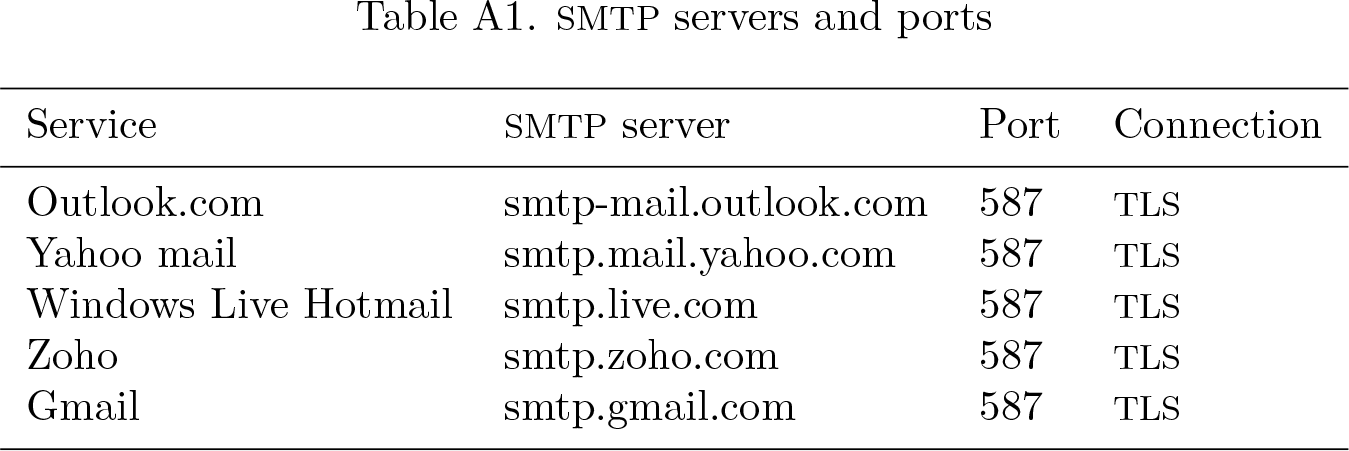
sendemails works only with email providers that allow access from external apps. By default, the SMTP settings are set for the use of Outlook accounts. These settings can be modified to work for other email providers. For instance, to send an email using Zoho, the smtpserver() should be set to smtp.zoho.com and smtpport() to 587. Different email providers may require users to modify settings before the use of SMTP. For instance, Gmail requires that users allow access to less secure apps before an email can be sent using SMTP via PowerShell (details on this are in the appendix). We are aware of only one email provider that does not allow SMTP protocol and thus sendemails: Office365, since December 31, 2022. The speed of email delivery may also differ across services. The appendix reports SMTP servers and ports for some of the most popular email providers; see table A.1.
First-time PowerShell users should note they may not have sufficient administrative privileges to perform the operations in sendemails by default. First-time users should open PowerShell as administrators and type Set-ExecutionPolicy RemoteSigned. This command must be given only the first time that sendemails is run on the machine; it specifies that scripts created on the current system and files with a digital signature may be executed.
There are two alternative short routes for this execution policy change. The choice between which route to follow depends on the user’s needs and administrator rights. The first route is the fastest one. The user can open PowerShell from within Stata by typing !powershell-noexit-command"Set-ExecutionPolicy-ExecutionPolicy RemoteSigned -Scope CurrentUser". This policy is not changed as an administrator; thus, it will be valid only for the current user. Other users of the same machine should change their execution policy too. Note that some institutes or companies may not grant local administrator rights; in this case, it is necessary to request access as an administrator to the local IT staff. The second alternative route requires a minimum direct interaction with PowerShell (that is, from outside Stata), but it changes the execution policy for all users of the machine. The user can open PowerShell as an administrator from within Stata by typing !powershell -noexit -command "startprocess powershell -verb runas", which opens a window called “User Account Control”, which asks permission to allow PowerShell to make changes to the device. The user should select yes. Afterward, the Command window named “Administrator: PowerShell” opens. At the end of the first line—where the last character is >—the user should type Set-ExecutionPolicy RemoteSigned -Force and then press the Enter key. The option -Force tells PowerShell to skip the confirmation prompt; that is, it does not ask the user to confirm the change to the execution policy.
To check and reset the execution policy from within Stata, you have two available commands. First, !powershell -noexit -command "Get-ExecutionPolicy" prompts PowerShell to display the current policy. Second, !powershell -noexit -command "Set-ExecutionPolicy -ExecutionPolicy Default -Scope CurrentUser" sets the policy back into being Restricted.
Owing to the configuration of the Send-MailMessage cmdlet, the way locations and filenames can be written follows some rules. There cannot be blank spaces 1) in attachment(), 2) in folder(), 3) between multiple main recipients, and 4) between additional recipients in both cc() and bcc().
In any option that includes a location, this location cannot include blank spaces, even between quotes in Stata (that is, psloc("C:\Users\Documents\Stata Jour Paper") is not allowed). Some options are required, namely, ufile(), pfile(), and subject().
Multiple main recipients and any additional recipients in both cc() and bcc() must be separated by semicolons without blank spaces.
Parameter values in notification() must be separated by a comma and may include blank spaces.
Parameter values of notification(), encode(), and priority() also accept parameter abbreviations until the parameter is no longer unambiguous; moreover, cases do not matter.
4 Setting up the material for the examples
Before starting the series of examples, the user should create two one-word .txt files: one file includes the actual password, and we call it password. The other file includes the username, and we call it username—which usually is the email address itself, referring to the email address used for sending messages. We recommend that the user write the .txt files from outside Stata to protect the user’s personal information in case the do-file with the sendemails command must be shared with someone else. The .txt files can be produced, for example, directly on Notepad or Notepad++ and stored in the working directory. These two .txt files are used in example 5.1. Alternatively, the user could produce password and username files from within Stata. This is a minimal working example:
Note that the same process of storing email address details somewhere in the machine is used in psemail; instead of having the password and username in two separate .txt files, users have them in macro globals in profile.do. An example of how users can take advantage of macro globals stored in profile.do when using sendemails is presented in section 6. Note that because of the nature of psemail, the user can store and use only one email address, while sendemails allows details on several senders’ email addresses to be stored and used, depending on needs.
We recommend that the user load the example dataset, which is (partially) used from example 5.2 onward. The dataset is called excelstatajexamples.xls, and it contains four lines, from different senders to different receivers, with several personalized components of the message. The user should personalize the dataset so that the string variable called email contains those emails used in the examples in this and the following section. The string variable called server and the numeric variable called port should include the parameters that correspond to email. The string variable called receiver should contain the recipient address. Finally, the variables password and username are already populated with strings corresponding to names of the .txt files that contain the actual password and the email username for the sending email addresses used in section 6. To replicate the examples in section 6, the user must create four additional .txt files.
Similarly, the user should personalize the anonymized do-file examplesendemailsanonymized.do.
Once the .txt files are ready and the Excel and do-files personalized, this do-file can run all the examples from example 5.1, including the one in the online appendix. Remember also to set up administrative privileges, as discussed in section 3.
5 Examples
5.1 Example 1: Sending one message
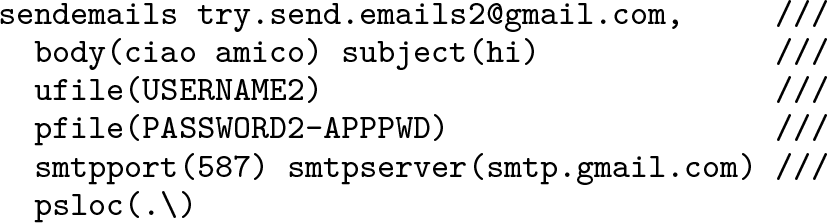
Let us send a one-line email using the email provider Outlook:
This command will create an email that looks like this:
The email subject is hi.
The user with an Outlook account can try this same example while omitting the smtpport() and smtpserver() options; the email will be sent anyway because of the default settings. Stata should be open whenever an email is to be sent.
5.2 Example 2: Sending one message to more than one email address
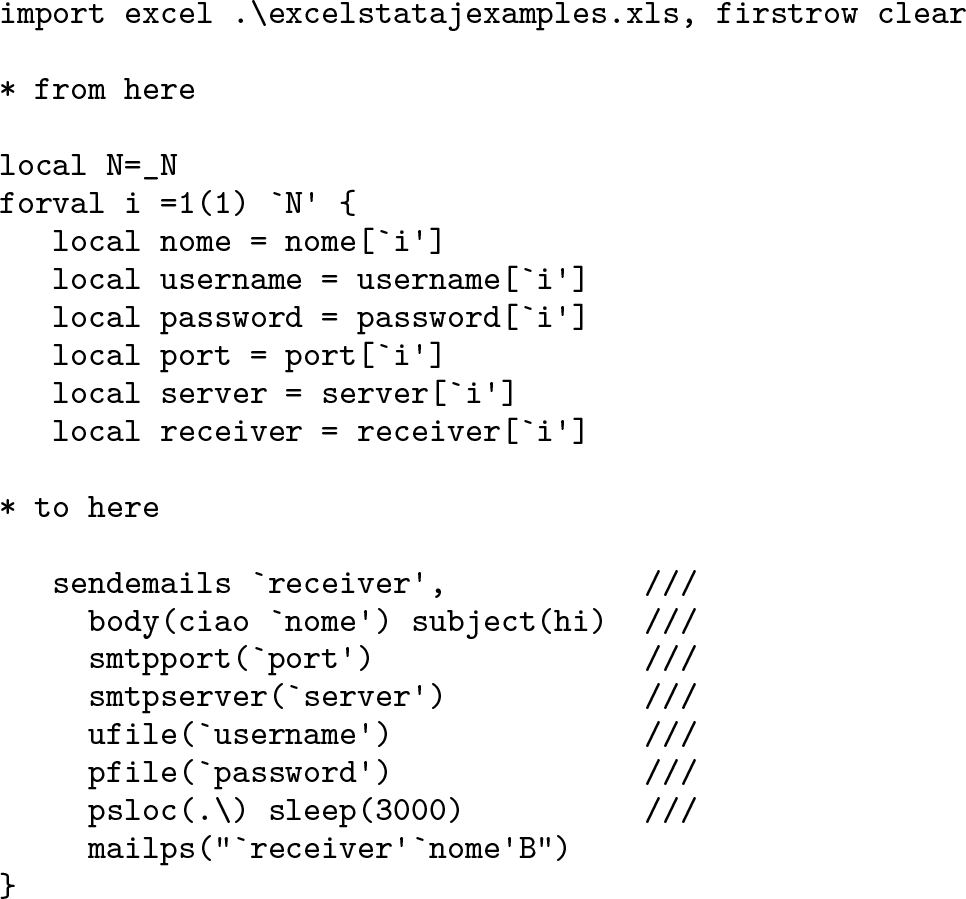
This example sends one email message as in example 1; however, the body is personalized, and the email is sent to several receivers from several sending addresses. We additionally set the .ps1 location in a different folder, set the sleep time, and set the name of the .ps1 files. Let us give Stata the following command:
This will create an email that looks like this:
ciao FRIEND’S NAME
Note that mailps() sets a name for the .ps1 file; this name is composed of the receiver’s email and name and a letter. This file and those from the next examples are all included in the working directory.
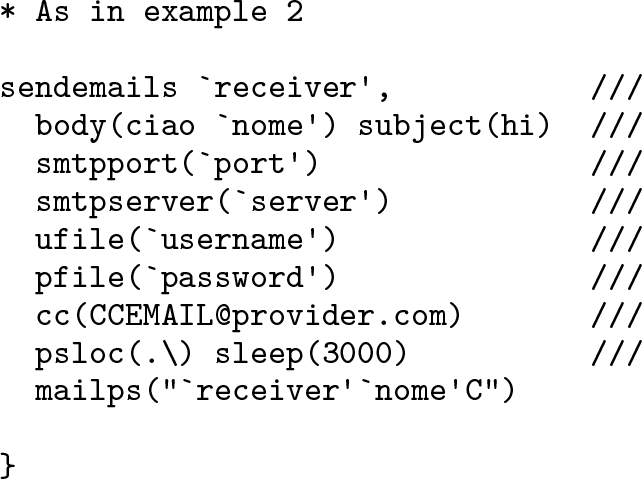
Please note that the block of code between the notation * from here and * to here remains unchanged until example 7. Thus, from examples 3 to 7 below, we replace that block of code with *As in example 2 for brevity; however, the replication do-file reports the code in its entirety.
5.3 Example 3: Sending one message to more than one email address, with same CC
This example is the same as example 2, except that one email in cc() is included as well. Let us give Stata the following command:
5.4 Example 4: Sending one message to more than one email address, with same CC and same BCC
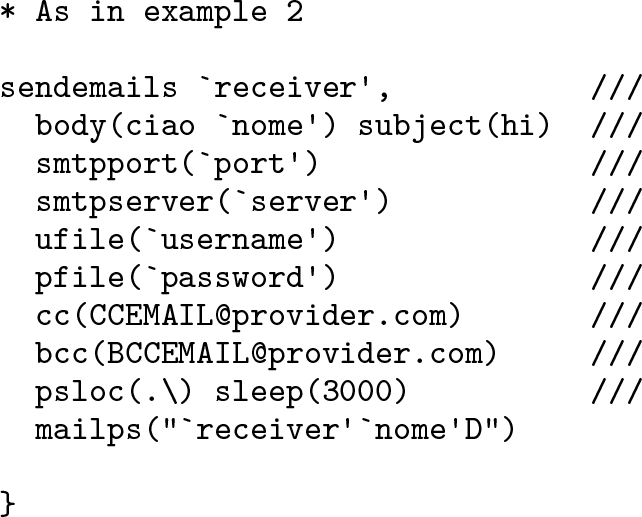
This example is the same as example 3, except that we add an email address in bcc(). Let us give Stata the following command:
5.5 Example 5: Sending one message to more than one email address, with same CC and same BCC, and one attachment
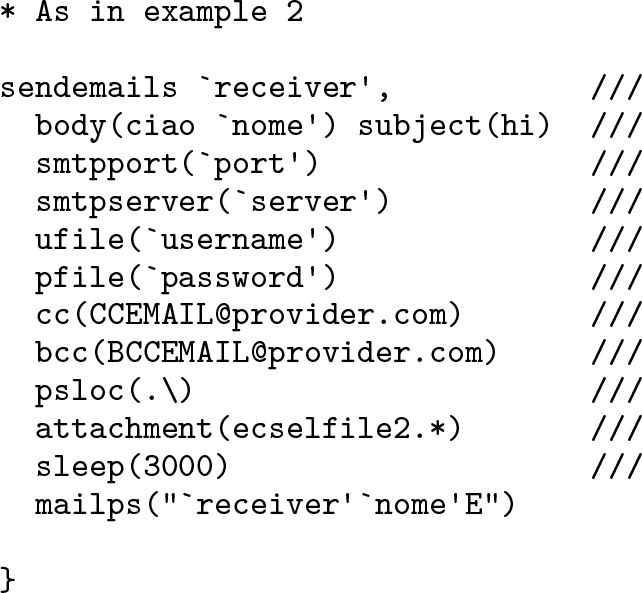
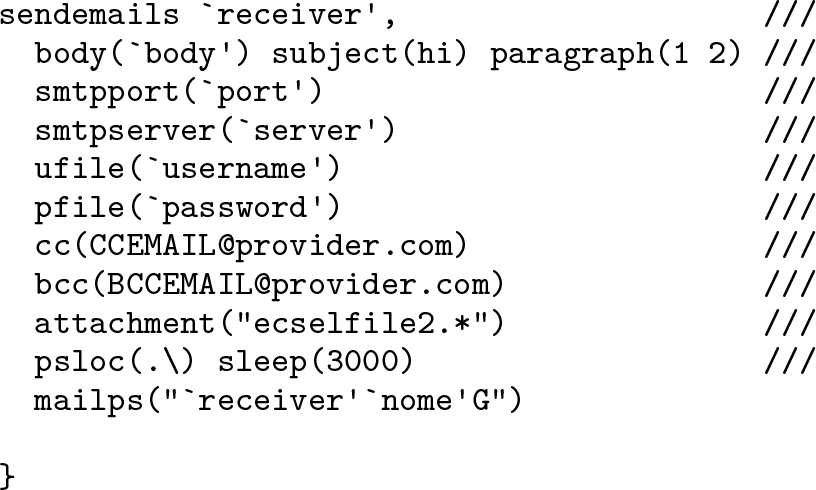
This example is the same as example 4, except that one file—the extension is irrelevant— is attached to the email. Let us give Stata the following command:
Note that there is only one file called ecselfile2, so the extension is not needed.
5.6 Example 6: Sending one message to more than one email address, with same CC and same BCC, and all the files from a folder
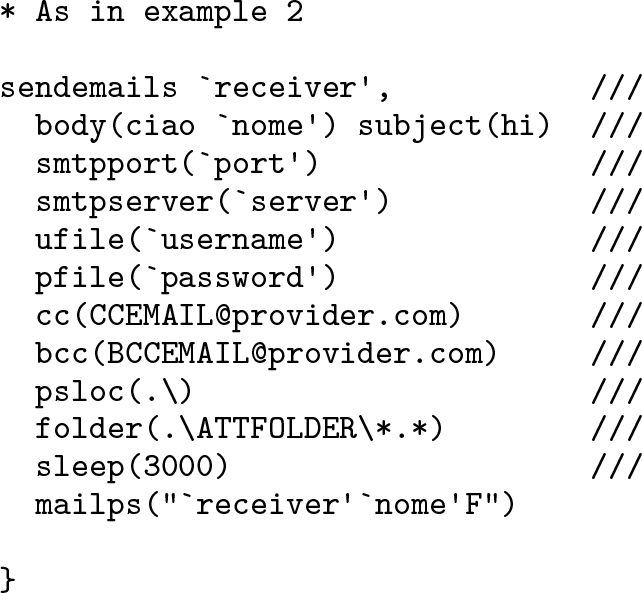
This example is the same as example 4, except that all the files from a folder are attached to the email—we call the folder ATTFOLDER, and it includes five files with different names and extensions. Let us give Stata the following command:
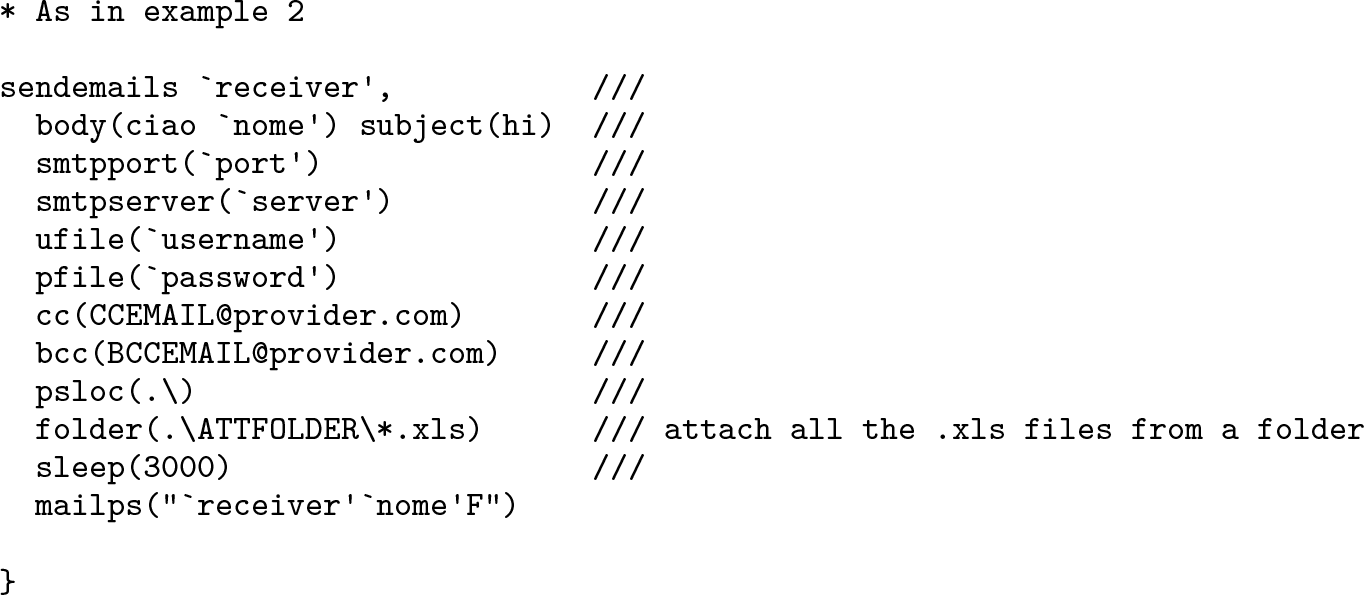
What follows is a slightly modified version of example 6. The difference is that now all the files with the same extension are attached from the folder ATTFOLDER. If the user wants all the files in the folder, the user must type \*.* following the folder name; assuming the folder is called robe, then string = working_directory_path\robe\*.*.
If the user wants only those files with a particular extension, the second * must be substituted by the extension. For example, if the user wants to attach all the PDFs from a folder that also contains .dta files, .doc files, etc., the user should type \*.pdf; assuming the folder is called robe, then string = working_directory_path\robe\*.pdf.
Let us give Stata the following command:
Note that if there are files with the same name but different extensions in the same folder and the user wants to attach them all, then the user could write string = working_directory_path\robe\file_name.*.
5.7 Example 7: Sending one message, in three paragraphs, to more than one email address, with same CC and same BCC, and one attachment
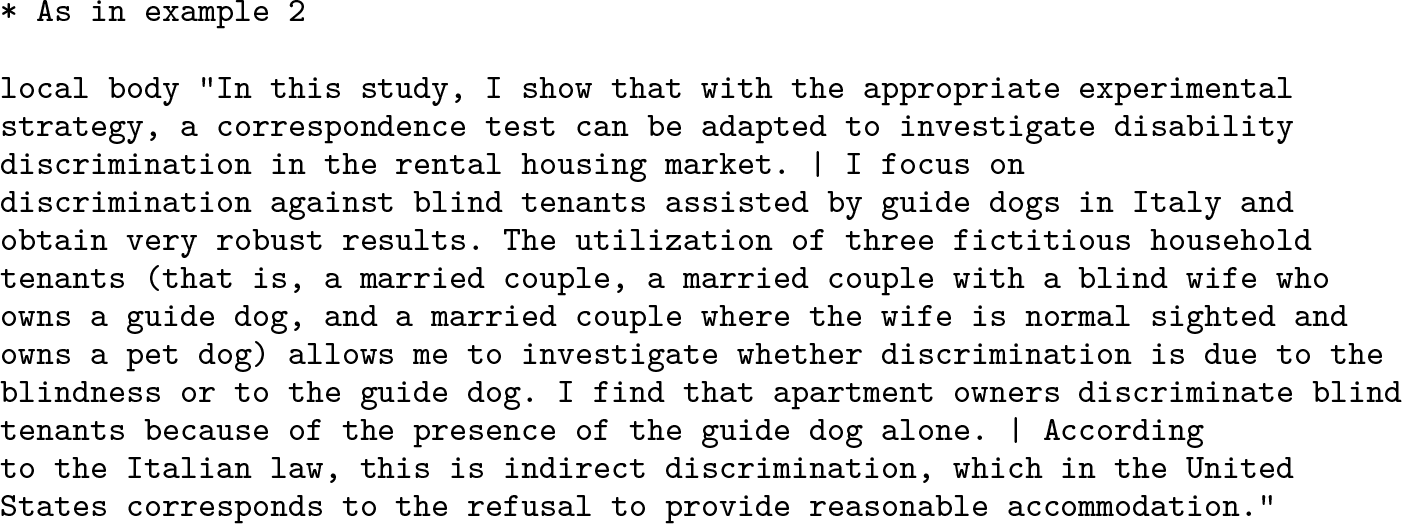
This example is the same as example 5, except that one long email body is used and is divided into three paragraphs using | as a delimiter. Let us give Stata the following command, which is shown on multiple lines but must instead be typed all on one line:
This example produces an email text that looks as follows:
``In this study, I show that with the appropriate experimental strategy, a correspondence test can be adapted to investigate disability discrimination in the rental housing market.
I focus on discrimination against blind tenants assisted by guide dogs in Italy and obtain very robust results. The utilization of three fictitious household tenants (that is, a married couple, a married couple with a blind wife who owns a guide dog, and a married couple where the wife is normal sighted and owns a pet dog) allows me to investigate whether discrimination is due to the blindness or to the guide dog. I find that apartment owners discriminate blind tenants because of the presence of the guide dog alone.
According to the Italian law, this is indirect discrimination, which in the United States corresponds to the refusal to provide reasonable accommodation.’’
This is the abstract from Fumarco (2017) with line breaks.
5.8 Example 8: Sending an email with HTML bold words
This example is similar to example 1, but it is sent from only one email address, the message is shorter, and some words are in bold. Let us give Stata the following command:
This will create an email that looks like this:
Note that if we erroneously specified html(1 <b>2</b>), the output would be
5.9 Example 9: Sending an email with HTML paragraphs
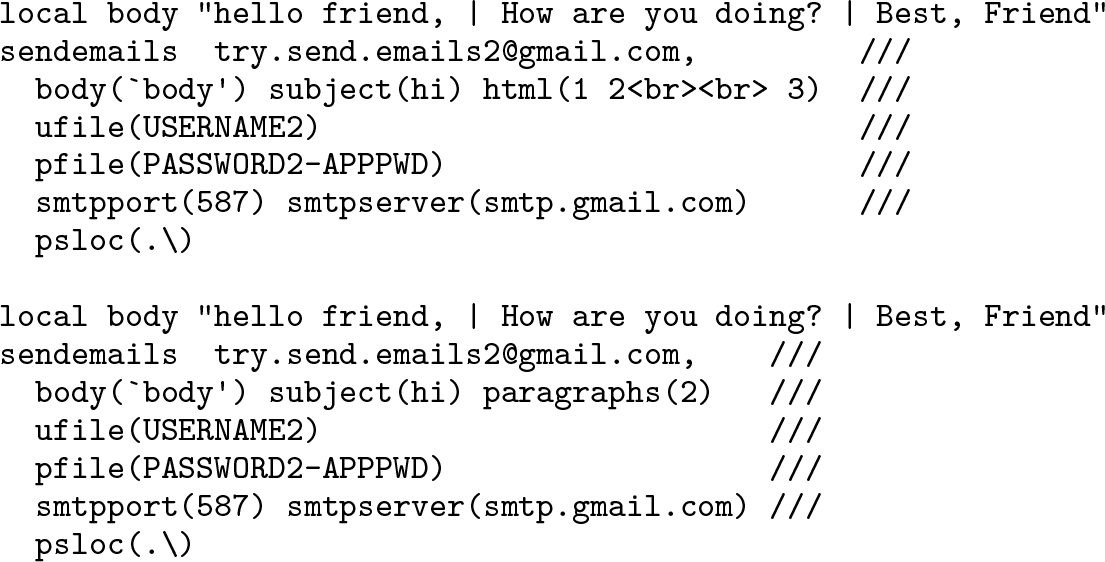
This example follows example 8, but the paragraphs are generated with two alternative methods: the first uses the html() option, and the second uses the paragraphs() option.
The following uses of the sendemails command are equivalent:
Both commands give the same result:
5.10 Example 10: Sending an email using the HTML content included in an external document named textmessage.txt
This example shows how to send an email with HTML formatting. The difference compared with examples 8 and 9 is that now the content and HTML formatting are included in an external document called textmessage.txt that is invoked using the htmltxt() option.
Note that htmltxt() cannot be specified together with the option body().
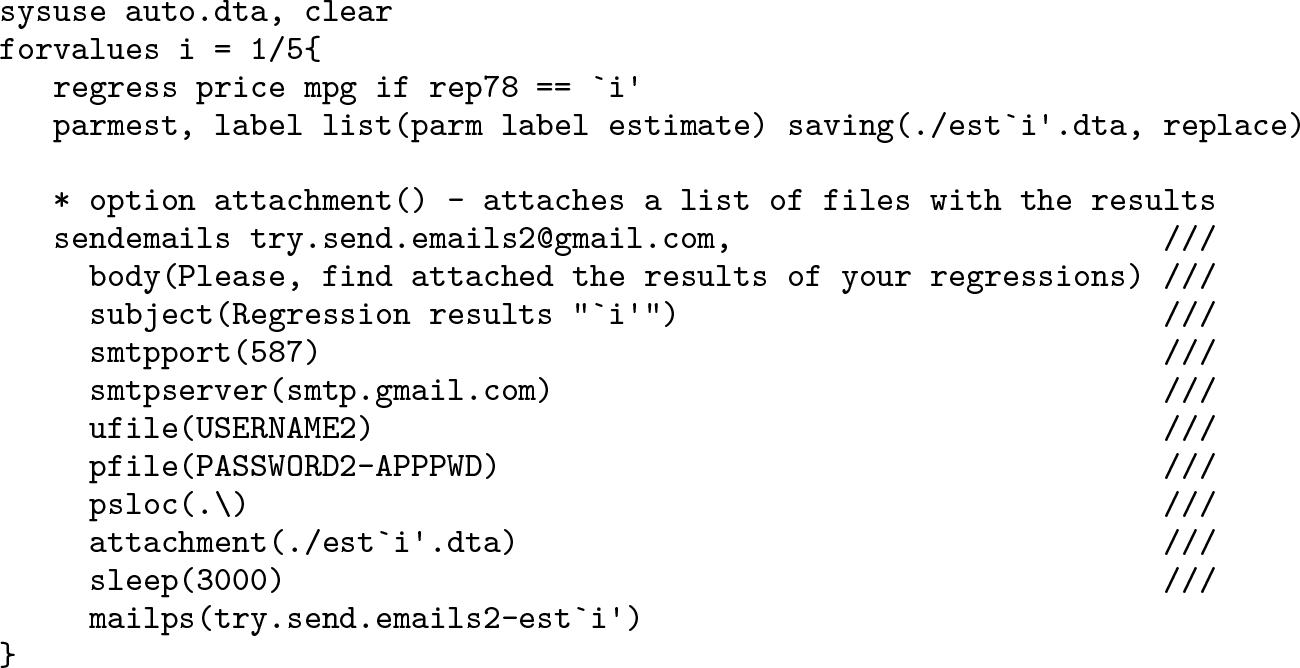
5.11 Example 11: Sending an email with the results of a Stata program
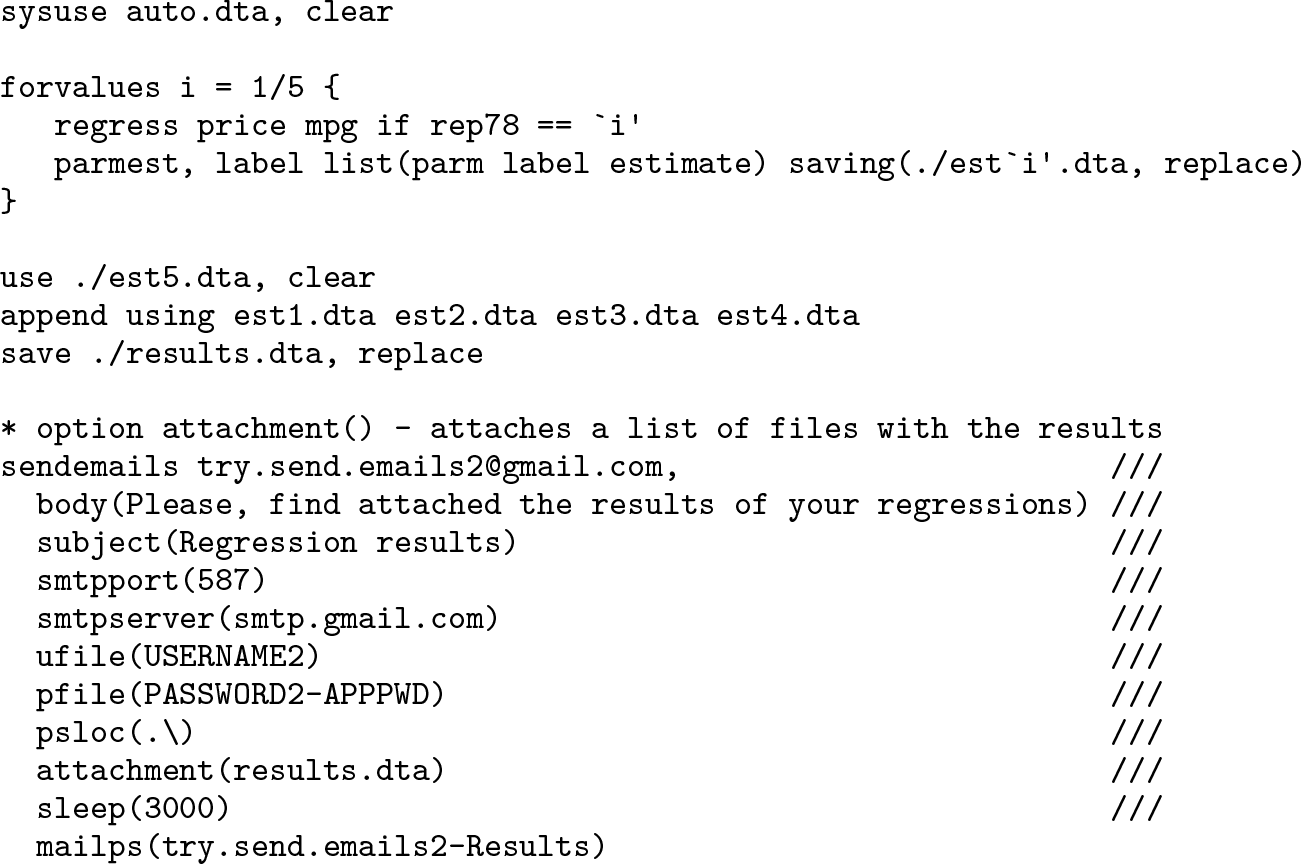
This example shows how to email the output of a Stata command at the end of a routine.
It is straightforward to include sendemails in the loop and let it send the result of each estimate separately as the loop progresses. Below is an example:
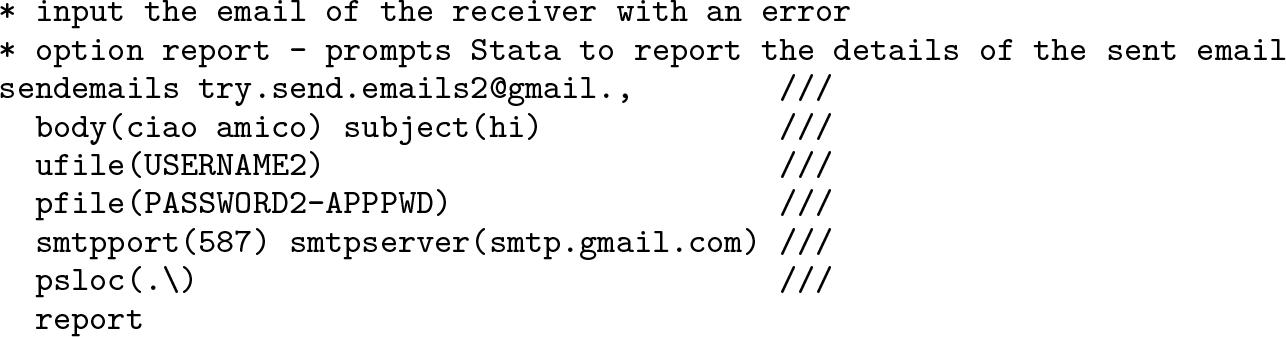
5.12 Example 12: Inspecting the output in case of an error
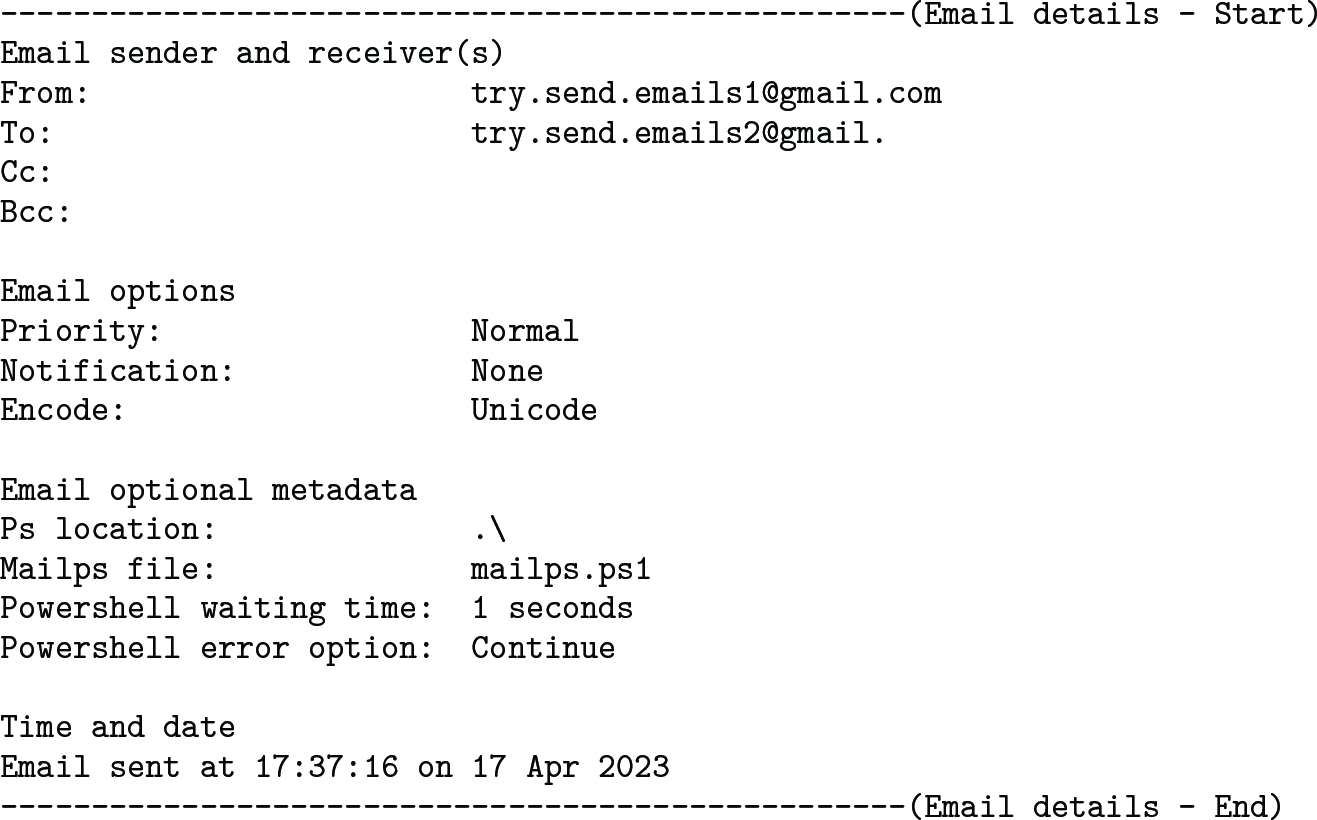
Let us consider the case when the user mistakenly misspells the receiver’s email address. The option report prompts Stata to provide a report on the details of the last sent email. Inspecting the content of the report reveals that the receiver’s email is incomplete. Below is an example:
This is the output of report.
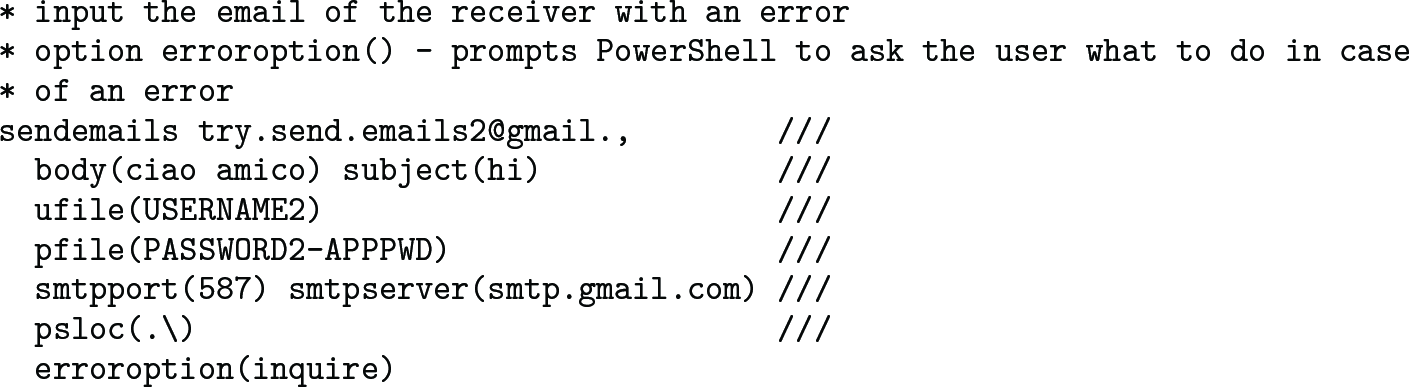
Besides asking for a report, the user can prompt PowerShell to ask the user what to do in case of an error. Below is an example:
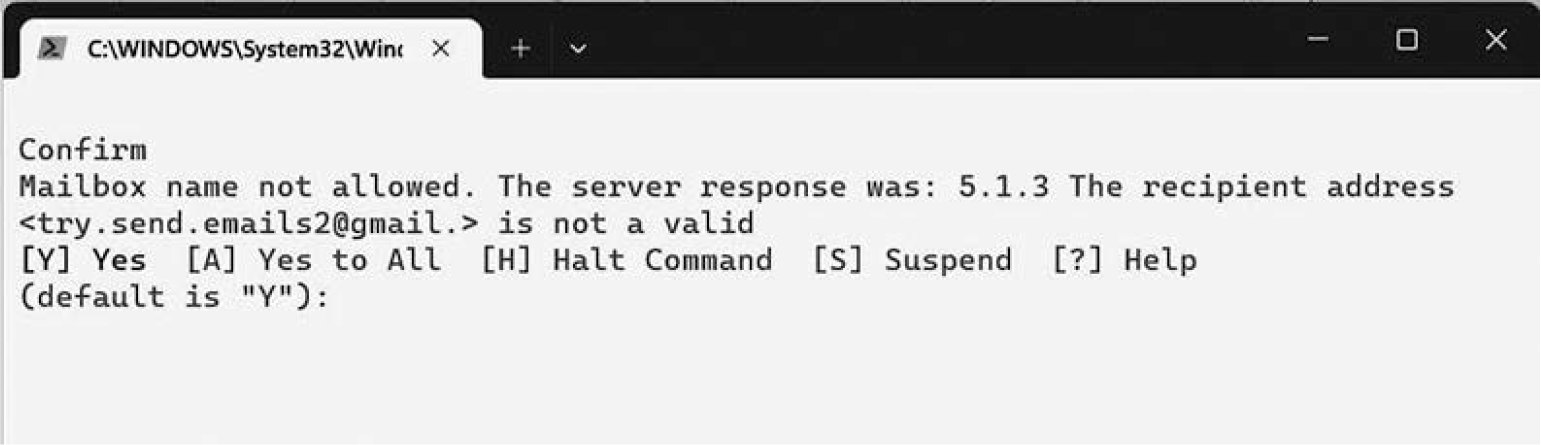
In this case, Stata executes the command and invokes PowerShell, which reports an error; Stata then asks the user how to proceed; see figure 1.
PowerShell encounters an error and inquires how to proceed
The user can choose to continue and disregard the error, stop the command, or suspend the command. The last option, Help, provides details about what each option entails, namely,
When Inquire is chosen as in this example, if PowerShell detects an error, it stops and inquires on what to do, that is, either Stop or Continue—additional parameters being provided are useless in this context but are provided by default by PowerShell; after the user responds to the inquiry, PowerShell automatically closes its window. When Continue is chosen, if PowerShell detects an error, it does not stop or display any message. When Stop is chosen, if PowerShell detects an error, it stops and displays an error until the user manually closes the PowerShell window.
6 Automatize loading of email details
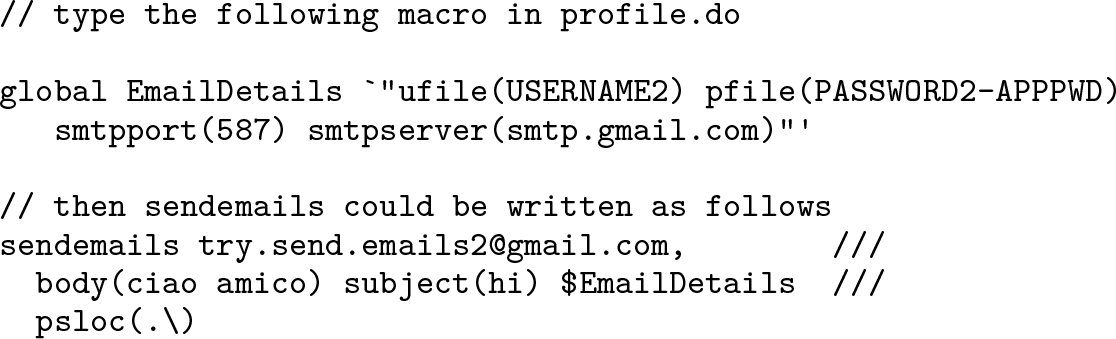
If the user is always using the same email addresses to send messages, we suggest writing a global macro in profile.do, which will be automatically run in the background by Stata whenever the software is opened. Let us write the macro and pretend it is saved in profile.do:
Now the command for example 1 can be written as follows:
It is worth noting two things. First, the way this command works allows the user to write details of different sending emails in profile.do. For example, the user could have three different email addresses for sending emails; in this case, profile.do would contain three global macros, such as EmailDetails1, EmailDetails2, and EmailDetails3. Second, the global macros (or the profile.do file) can be enriched with additional frequently used options to minimize the number of options invoked each time. In the following example, some common options about message priority and error notification are added:
7 Verify possible errors and what emails have been sent
We identified five types of errors while sending emails with the sendemails command:
Errors detectable by the email provider. For example, the recipient address might contain a nonexistent username (for example, verdghdjsp@hotmail.it). Strictly speaking, this is not a mistake in either the underlying PowerShell script or the Stata script, so it will not be detected by them. In this case, an automatic email with an error message would be sent to the delivering address by the email provider of the receiver. Another example of an “error” detectable by the email provider is that the receiver’s mailbox is full or no longer active. The user can rely on the notification() option to check whether any such errors have happened.
Port and server errors. There could be an error in how the port or server is typed. This is not a mistake in either the underlying PowerShell script or the Stata script. To the best of our knowledge, this error cannot be detected by either PowerShell or Stata. It is not even detectable by the email provider, because the email provider cannot be contacted in the first place if port or server is wrong. In this case, the PowerShell operation cannot be concluded, so it reaches the default operation time-out of three seconds (note that this parameter does not correspond to the pstimeout() option and cannot be easily changed by PowerShell users with a simple script). No error message is thus delivered by the email provider, PowerShell, or Stata. As far as we know, this kind of error is not detectable. This error is equivalent to not plugging in a desktop computer and expecting it to display an error message. The user should double-check the inputs provided, including whether the server and port information are correct and complete.
Writing the Stata command. The command or the options might have been misspelled or unspecified. It is possible that a semicolon is missing or that a blank has been included in a list. This could happen if option cc() or bcc() is invoked. To verify if such an error happened, the user must rely on Stata error messages. In this case, we recommend carefully debugging the Stata code and eventually executing it line by line.
Errors in the PowerShell script. There can be many causes of errors in a PowerShell script. The most common types include syntax errors (like missing brackets or typos), run-time errors (such as undefined variables), and input errors (that is, errors related to user or external input). For instance, a typo could prevent successful interpretation and execution of options such as encode(), notification(), or priority(). If the ado-file that includes the PowerShell script is correct, such errors cannot occur.4 Testing and debugging practices applied to PowerShell commands and options can help the user sort out typos or syntax errors.
Errors detectable by PowerShell and concerning the email being sent. For example, email addresses must contain all their parts, including the domain name and its top-level domain (for example, .it, .com, or any other existing extension). Failing to provide a complete domain name for an email address will prevent the delivery of the message. If no extension is included, PowerShell displays an error message. The combined use of erroroption(), errormessage(), and pstimeout() can help the user find out whether such errors happened.
If the user is sending many emails, it is possible to verify which emails have been commanded to be sent by inputting the information in an ad hoc dataset in the folder with .ps1 files. For that purpose, it is possible to use several commands. Here is an example of how to use filelist (Picard 2013)—a community-contributed package that should be downloaded—to accomplish this
This command grabs all the .ps1 files with personalized and meaningful names—as suggested in example 2—and inputs them in successemails.dta.
The user can check individual .ps1 files too; these files can be opened with Notepad and Notepad++, for example.
8 Conclusion
The sendemails package allows users to automatically send emails with Stata through PowerShell, which is open-source and cross-platform. With this package, researchers can perform various email tasks.
This package has one potential limitation. Protocols established by email providers are ever changing, which could cause the future failure of sendemails. While Send-MailMessage (and thus this package) currently works with the most popular email providers, there is no alternative cmdlet that can be universally adapted to any email provider yet. However, there are at least two solutions: 1) The security procedure can be updated. For example, this situation has already occurred in between revisions of this article when, at the end of May 2022, Google adopted a new third-party sign-in policy— we described the procedure to deal with this issue in the appendix. 2) Whenever a new universal cmdlet will be available, Send-MailMessage can be updated to let sendemails work with the new protocols.
10 Programs and supplemental material
Supplemental Material, sj-zip-1-stj-10.1177_1536867X241233672 - sendemails: An automated email package with multiple applications
Supplemental Material, sj-zip-1-stj-10.1177_1536867X241233672 for sendemails: An automated email package with multiple applications by Luca Fumarco, S. Michael Gaddis, Francesco Sarracino and Iain Snoddy in The Stata Journal
Footnotes
9 Acknowledgments
We thank an anonymous referee for the constructive suggestions and comments. We owe a debt of gratitude to Michaela Kecskésová for the research assistance. Luca Fumarco acknowledges the generous support from the NPO “Systemic Risk Institute” number LX22NPO5101, funded by European Union–Next Generation EU (Ministry of Education, Youth and Sports, NPO: EXCELES) and from the CERGE-EI Foundation Teaching Fellowship Program. We thank Clyde Schechter and Sam Langfield for their help in solving some package bugs.
10 Programs and supplemental material
To install the software files as they existed at the time of publication of this article, type
ElliottD. C.2002. tknz: Stata module to tokenize string into named macros. Statistical Software Components S426302, Department of Economics, Boston College. https://ideas.repec.org/c/boc/bocode/s426302.html.
2.
FumarcoL.2017. Disability discrimination in the Italian rental housing market: A field experiment with blind tenants. Land Economics93: 567–584. https://doi.org/10.3368/le.93.4.567.
PicardR.2013. filelist: Stata module to recursively search directories for files. Statistical Software Components S457727, Department of Economics, Boston College. https://ideas.repec.org/c/boc/bocode/s457727.html.
WurstenJ.2017. sendtoslack: Stata module to send notifications from Stata to your smartphone through Slack. Statistical Software Components S458396, Department of Economics, Boston College. https://ideas.repec.org/c/boc/bocode/s458396.html.
7.
ZhangX.CuiD.LiC.. 2013. psemail: Stata module to send email from within Stata for Windows environment. Statistical Software Components S457606, Department of Economics, Boston College. https://ideas.repec.org/c/boc/bocode/s457606.html.
Supplementary Material
Please find the following supplemental material available below.
For Open Access articles published under a Creative Commons License, all supplemental material carries the same license as the article it is associated with.
For non-Open Access articles published, all supplemental material carries a non-exclusive license, and permission requests for re-use of supplemental material or any part of supplemental material shall be sent directly to the copyright owner as specified in the copyright notice associated with the article.