



Abstract
We have designed and implemented an automated walkup NMR computer application for use by synthetic chemists. The Wyeth Walkup NMR (WWNMR) application is a TCL/TK graphical user interface front-end to Varian's NMR automation routines. The key feature of WWNMR is that the chemists are isolated from the spectrometer's control program (VNMR) and only enter information to WWNMR windows for a sample to be run. The resulting data can be printed out on paper, or stored on disk for easy access by all users at their desktops. Proton and carbon NMR experiments are available. An overview of the WWNMR application will be presented.
Introduction
Nuclear Magnetic Resonance (NMR) spectroscopy is an important analytical technique used to determine the chemical structure of experimental drug compounds in the pharmaceutical industry. NMR spectrometers contain two major parts: the electronics/computer console and the magnet/sample probe. In manual operation, the operator places a sample in the magnet and controls the spectrometer from the computer console. In the course of synthesizing new experimental drug compounds, NMR spectra are usually acquired at each discrete step. Thus, the organic chemist spends considerable time collecting NMR spectra. Historically at the Princeton, NJ site of Wyeth Research, the chemists operated NMR spectrometers from Varian NMR Instruments (Palo Alto, CA) in just such a manual mode, placing the sample into the instrument and directly interacting with the spectrometer controls. This paradigm meant that each chemist had to be a proficient NMR spectroscopist. If they were not, then a backlog of chemists waiting to collect their NMR data developed. While there are automation procedures built into all the major NMR spectrometer vendor's instruments including Varian's, they did not have the custom features we wanted.
We wanted to free the users from having to directly operate the spectrometer and the computer operating system as much as possible, to give them access to a variety of NMR methods and sample solvents, and to return the resulting data to their corporate PC desktops. To provide these features, we began to develop an interface program to bridge the gap between the chemists and the NMR spectrometer. We eventually named this interface program Wyeth Walkup NMR or WWNMR.
VARIAN NMR AUTOMATION
Varian NMR spectrometers are controlled by a program called VNMR. In VNMR version 6.1C there are built-in features for the automatic acquisition of NMR data, provided the NMR spectrometer has an attached sample changer such as Varian's SMS-100. Samples can be positioned in the magnet by hand or by robotic sample changer. Spectrometer operation can be automated by combining small sequences of commands into what Varian calls macros. These macros can be very elaborate and control all aspects of the spectrometer.
In our hands, Varian's automation works very well and is very robust. It produces the best possible spectrum consistent with the quality of the sample in the magnet. Our extensive experiences acquiring data under automation from samples submitted to the NMR laboratory supported the premise that automation would produce a spectrum as good as or better than any of our walkup users could produce. Our use of pulsed-field gradient shimming procedures and tables of solvent lock frequencies helps to ensure that high quality spectra are obtained.
The automation system controls the spectrometer and sample changer with a text file, called enterQ, which contains a list of information about the sample to be run. The three most important lines contain the name of the macro to invoke, the sample solvent and the text field for a given sample. The macro contains the commands to acquire, process, and archive the NMR data for the sample. The solvent is needed for proper spectrometer operation. The text field allows the user to identify the sample in an appropriate manner.
After the spectrometer processes the information for a sample, that set of information is moved to a text file called doneQ. A third file called psgQ holds information about the sample while data is acquired. Between enterQ, psgQ and doneQ, the entire automation queue can be tracked. The automation queue is usually controlled from inside VNMR with specific commands to start and stop the queue.
The status of the spectrometer, the number of scans completed, the spinning rate, and the lock level, among other parameters, are dynamically displayed in a small window on the computer screen. Varian also provides a command to produce a text version of this acquisition status window. The UNIX operating system provides a mechanism to write the text version of the acquisition status window into a file.
DESIGN CONSIDERATIONS
As WWNMR was designed, several guiding principles developed. These served as a blueprint for the application and are described below.
WWNMR MUST INTERACT WITH ALL THE ASPECTS OF VARIAN'S AUTOMATION FEATURES
This means that WWNMR would have to read and write the enterQ and doneQ files that VNMR reads and writes, incorporating the sample-dependent information. Additionally, WWNMR would have to be able to send commands to VNMR to start and stop the automation queue. WWNMR must also be able to read the text version of the acquisition status and use it to decide what is happening in the spectrometer (see Figure 1).
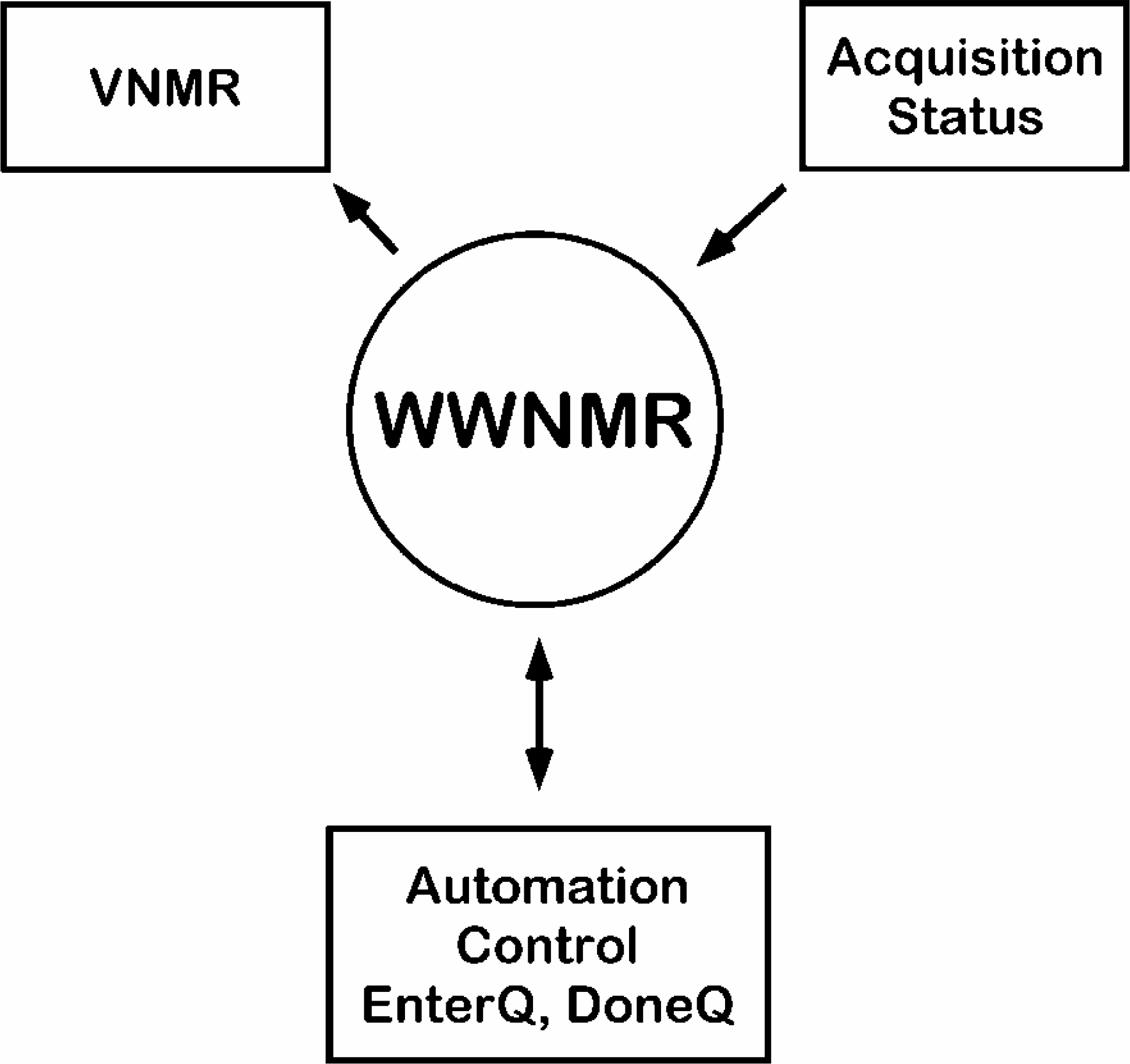
Schematic of how WWNMR interacts with the NMR spectrometer and the automation queue.
THE WWNMR INTERFACE PROGRAM MUST BE SIMPLE TO USE
The options and choices the user can make at each step must be clear. To achieve this, we decided to create a series of full screen windows to divide the steps the user must make. Three distinct steps can be envisioned for the operation of WWNMR. First, a login screen is needed to start the program. Second, a screen is needed for experiment and parameter selection. Third, a picture of the robotic sample changer rack is needed showing where the newly submitted sample should be placed.
THE WWNMR INTERFACE MUST ALSO ISOLATE THE USER FROM THE UNDERLYING UNIX OPERATING SYSTEM AND FROM THE VNMR PROGRAM
Varian NMR spectrometers operate on UNIX computers at what is known as the console terminal. After logging into UNIX, the spectrometer operator has full access to the computer and to any network to which the computer is attached. To isolate the WWNMR users, each of the screens must always fill the computer screen.
To keep the automation queue running, the interface must have the ability to recover from faults introduced by the user. In the final design, three screens stop automation to prevent the sample changer from moving until the user responds to questions with button clicks. Each of these screens has a built-in timer function that automatically returns WWNMR to the login screen and sends email notices to the system administrator and the user that a screen has been left unanswered.
THE USER'S NMR DATA MUST BE AVAILABLE ON THE CORPORATE DESKTOP AS A PDF FILE
Traditionally, the NMR data acquired in this walkup facility are not saved permanently. We decided to use PDF files of the plots as a storage medium. The PDF files would be available for 30 days. We chose to enable this in two ways. First, the NMR spectrometer sends an email to the user with a web hyperlink to the PDF file. A web server supplies the PDF file on demand to the users. Second, users also have direct access to the PDF and raw binary files on their corporate desktops. These requirements suggested using corporate email IDs as the login names for users. This allows a simple interaction with the corporate email system.
PROGRAMMING CONSIDERATIONS
The Varian spectrometer operating program, VNMR, uses a computer scripting language called Tool Command Language/Tool Kit (TCL/TK) 1 for many purposes, including as a way for users to write macros which control the spectrometer. Varian provides a version of TCL/TK so spectrometer commands can be passed from TCL/TK programs into VNMR. This conduit would enable the WWNMR interface to control the VNMR program and so TCL/TK was chosen as the language for the interface. TCL/TK contains many pre-built buttons, menus and labels that make creating a graphical user interface easy. It also contains file I/O functions for reading and writing the enterQ and doneQ file.
WWNMR PROGRAM DESCRIPTION
The WWNMR program shows users a series of full-screen computer windows that guide the user from logging into the system through to placing a sample into the SMS-100 rack and acquiring NMR data. The following descriptions will explain all the WWNMR windows and supporting software necessary for normal operation. WWNMR must be started from the VNMR command line interface to initialize the communication pathway between the two programs. Normal operation of WWNMR starts with logging in, selecting experiments and placing the NMR sample into the sample changer rack.
CONFIGURATION FILE
All system parameters are kept in a common configuration file. This mechanism represents an easy way to find important parameters without searching through the source code. These parameters include not only the names of experiments, solvents, (which the user sees in the program windows), but also system parameters that are not directly visible to the user.
STATER SHELL SCRIPT
The STATER shell script writes the contents of the acquisition status window into a text file, sleeps for two seconds, and then repeats. STATER runs in the UNIX background to provide WWNMR with a running update of the spectrometer's status. This shell script must be running when WWNMR is running.
USER DATABASE
Users must be registered to use WWNMR. To enable data to be emailed back to the users, each user is registered by their corporate email name. Only the system administrator can access the registration window to add new users to the database. The email name is stored in a text file along with a set of user preferences that are displayed when the user logs into WWNMR. The preferences are encoded as a list of numbers following the user-name. They are updated each time a sample is run.
LOGIN WINDOW
When a user wants to run a NMR sample, they enter their username into the login window (see Figure 2). User names are checked against the user database. If an unknown user tries to login, they see a message directing them to contact NMR lab personnel to become registered. Unsuccessful logins are recorded in a log file. The login screen also shows the number of samples waiting to be run. This feedback allows the users to decide which of the available NMR spectrometers in the laboratory to use.
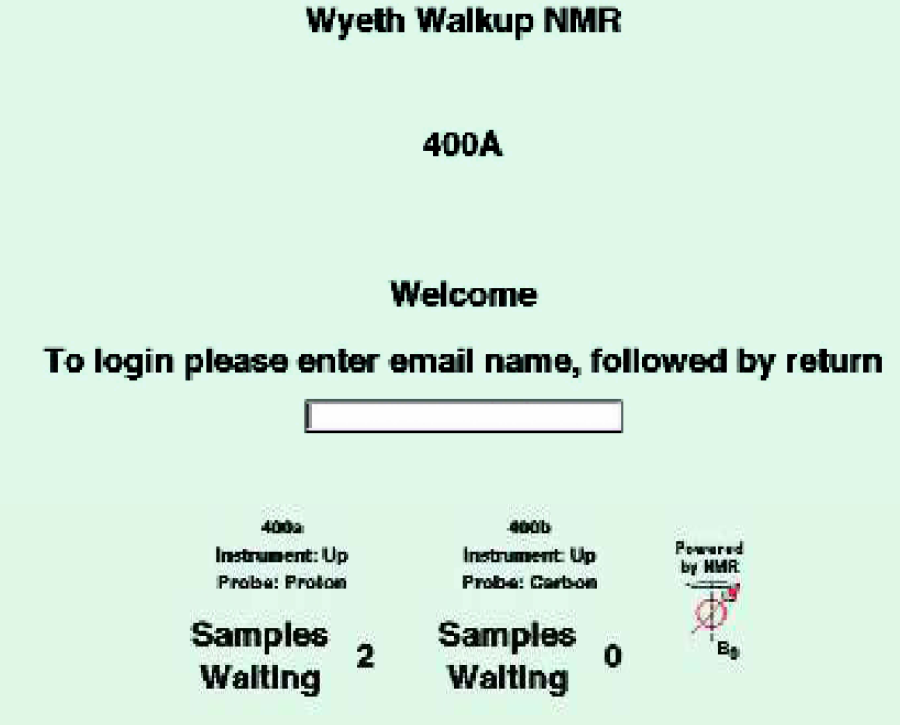
The login window, showing the entry box where users enter their email name. The window also shows the number of samples waiting to be run on each NMR spectrometer. This feature allows users to select the instrument with the shortest turn around time.
After a user successfully logs in, WWNMR determines the next available sample location by reading the enterQ and doneQ files. If the automation queue is running, the psgQ file is also read to help determine the next available position. Once the new sample position is determined, the login window is replaced with the experiment selection window.
EXPERIMENT SELECTION WINDOW
Next, the user sees the experiment selection window (see Figure 3). On this screen, a series of entries must be made to start an acquisition. First, NMR experiments are selected from a list of choices prepared by the system administrator. To create an entry in the experiment list, a Varian macro must be created to configure the spectrometer to acquire the particular experiment. Each experiment macro includes calls to other standardized macros so all WWNMR-generated data are handled in the same manner. Each macro name must also appear in a list in the configuration file. Included for each entry are the experiment macro name, button name, and a short help description for that macro. Experiments may be grouped into short and long experiment categories. This distinction changes the appearance of the click button and how that sample is treated. Short experiments are put into the automation queue immediately, while long experiments are held until a time set by the system administrator to be run.
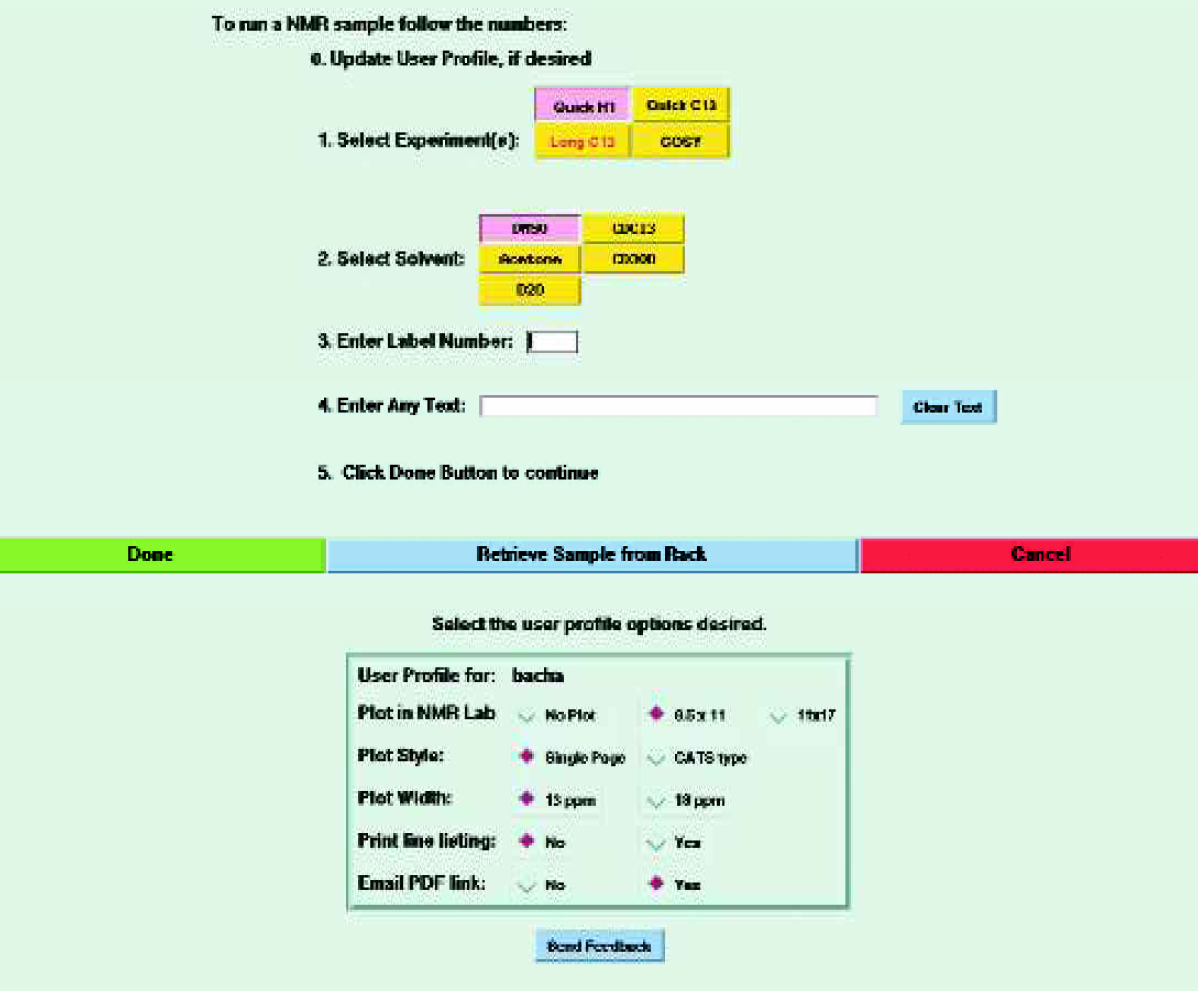
The experiment-selection window showing the five steps needed to enter a sample into the automation queue (top). The profile options from the user's previous sample are displayed when the window opens.
After selecting the type of experiment, the user selects the solvent for the NMR sample. A list of solvents is also included in the configuration file. Each solvent in the list must have spectrometer parameters established for it, which include the magnet field position to lock on the solvent (Z0), lock power and lock gain settings, and shim values. One solvent is chosen as the default setting.
Next, the user enters a four-digit label number. This preprinted number is read from a sticky label that is affixed to the NMR tube to identify it. Samples cannot be queued without entering this number. Text can also be written into a field for inclusion on the resulting spectrum. Each step in the process is numbered to remind users how to proceed. The bottom portion of the screen contains the user preference display (discussed below). In the center are click buttons to proceed to the next screen (Done Button), retrieve a sample from the rack, and cancel back to the login screen.
USER PREFERENCE DISPLAY
At the bottom of the experiment selection window (see Figure 3) is a series of radio buttons that control various plotting options. These include whether a plot is printed in the NMR laboratory and its size; whether a peak frequency list is printed; whether expansions are made and how much of the sweep width is plotted. There is also a choice for having the spectrometer automatically generate and send the user an email message when the acquisition is completed. These preferences are encoded as numbers and stored with the users email name in the user database.
TUBE PLACEMENT WINDOW
This window shows the user where to place their sample in the SMS-100 rack (see Figure 4). A schematic representation of the top of the SMS-100 rack is displayed with the position for their sample in a different color. At this point, the stop automation command has been sent to VNMR and the sample changer is not allowed to move. If the sample changer is moving when the tube placement window is about to be displayed, a window warning the user to stay away from the sample changer is displayed instead. When the SMS-100 stops moving the tube placement window is then displayed normally.
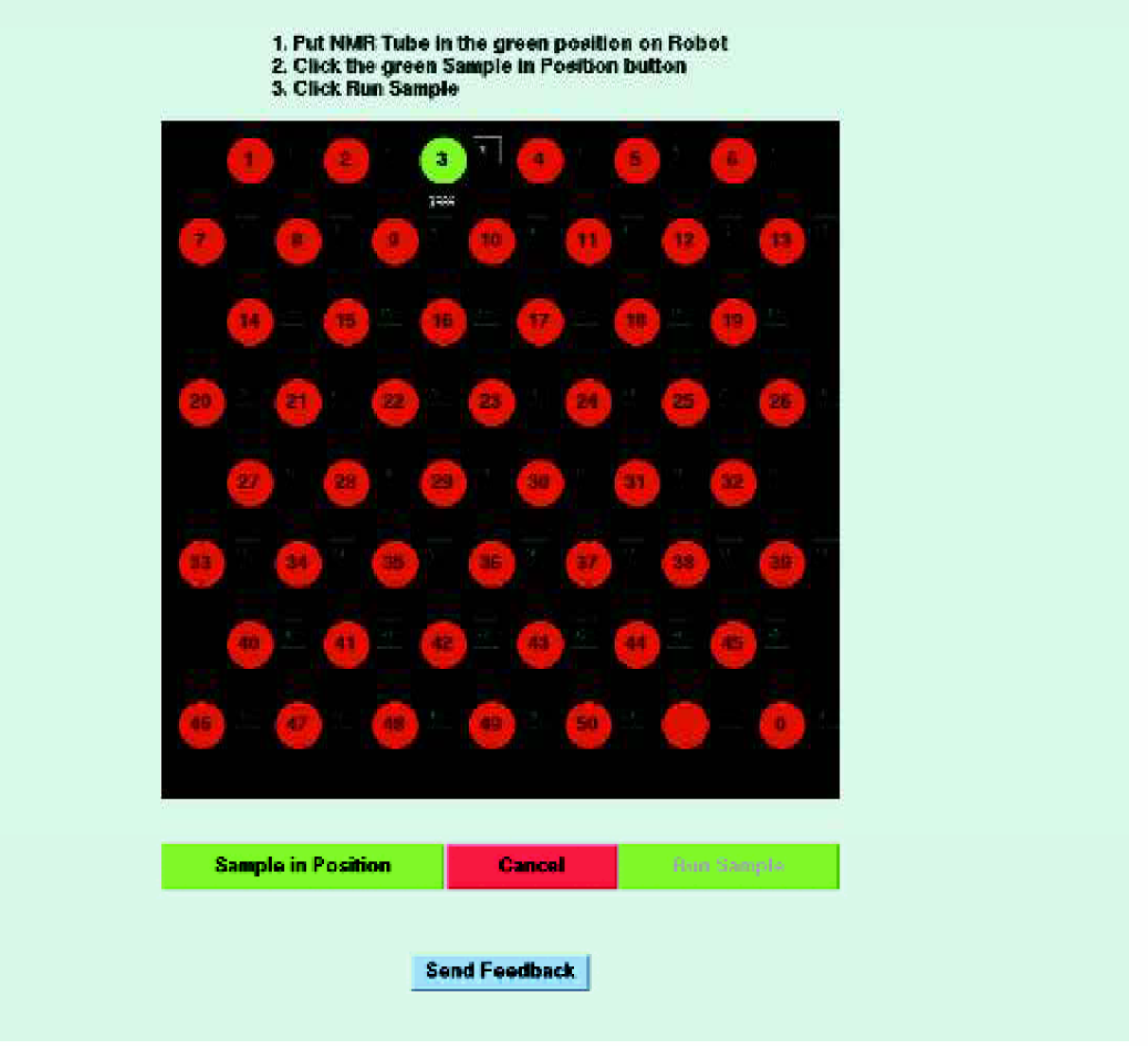
The tube-placement window is a visual display of the sample changer rack showing the user where to place their sample.
Now the user's sample can be placed into the sample changer. A display unit is mounted on top of the sample-changer table that shows the sample position number, and has a “Sample in Position” push button. Pushing the button activates a “Run Sample” button on the tube placement window that the user can then click to add that sample to the automation queue. At this point, the sample information is written into the enterQ file and the automation start command is sent to VNMR. WWNMR returns to the login screen.
A five-minute timer starts when the tube-placement window appears. If the user doesn't push/click both the “Sample in Position” button and the “Run Sample” button before the timer counts down to zero, the login window is displayed, the sample information is cancelled, and an email is sent to the user reminding them to push/click the proper buttons. If the user does push the “Sample in Position” button but doesn't click the “Run Sample” button before the timer reaches zero then the sample is queued, the login window is displayed, and an email message is sent to the user reminding them to click the “Run Sample” button. The system administrator also receives the email messages.
RETRIEVE SAMPLE WINDOW
Users are required to log into WWNMR and click the “Retrieve Sample” button on the experiment selection window whenever they want to remove a sample from the sample changer. When the window appears, WWNMR sends a stop automation command to VNMR. The sample changer will not move until a start automation command is received. The user is able to remove samples from the sample changer rack without the robot arm starting to move while they are inside its circle of reach. Data acquisitions in progress when the stop automation command is received by VNMR will continue to acquire NMR data but will not be processed until the “Sample Retrieved” button is clicked. A five-minute timer is started when this window appears. If the user has not dismissed the window before the timer reaches zero, the login window is displayed again and an email message is sent to the user reminding them to dismiss the window manually. The system administrator receives a copy of the email.
USER FEEDBACK WINDOW
The Experiment Selection and Tube Placement windows have click buttons that open a small window, which allows the user to type and send an email message to the system administrator.
VARIAN MACROS
WWNMR acts as an interface between its users and the VNMR program. WWNMR controls VNMR by passing to it the names of macros that should be executed. These macros configure the NMR spectrometer to acquire the data, and then run the experiments. From there, other specialized macros are called which control plotting, data storage and sending email notices.
LONG EXPERIMENTS
At the system administrator's discretion, long experiments (i.e., those taking longer than five minutes) may be queued to run at a pre-determined time during the evening or night hours. The time is set in the configuration file. Special rack positions are designated in the sample changer for these experiments. WWNMR operation proceeds as previously described, except that the enterQ entry is written into a temporary file. At the specified time, the temporary file is written into the enterQ file and the start automation command is sent to VNMR.
ROBOTIC SAFETY
The Varian SMS-100 sample changer uses a Zymark (Hopkinton, MA) Zymate robot to move the NMR spinner and tubes between the sample-changer rack and the magnet. To prevent the users from interfering with the robot when it is moving, a protocol was developed to let WWNMR determine if the SMS-100 is moving or stationary.
There are two obvious conditions where the user has to approach the sample rack. The first is to insert a sample into the rack. The second is to remove a sample when requested experiments are complete. The sample changer must be prevented from moving during these two scenarios.
When WWNMR is about to stop the automation queue, the STATER output is examined to determine if the SMS-100 is moving. If it is, then a warning screen appears before the tube placement screen is displayed. The warning screen remains in place until the STATER output indicates the sample changer has finished its movement. Then the tube placement screen is displayed and the user can place their sample into the sample changer rack.
When the user wants to remove a sample from the sample changer, the automation queue and the sample changer movement must be stopped. The retrieve sample button on the experiment selection page stops all operation until the user dismisses the screen.
When the retrieve sample screen is displayed, a five-minute timer begins counting down to zero. If the user has not dismissed the screen during the allotted time, the screen is removed and WWNMR returns to the login screen. An email message is also generated, reminding the user that the WWNMR system was stopped needlessly. The WWNMR system administrator receives a copy of the email.
HARDWARE MODIFICATIONS
NMR samples are analyzed in 5mm-wide glass NMR tubes. These tubes sit in a fiberglass turbine that spins at 16 Hz on a cushion of air while the analysis is conducted. The length of the tube extending below the bottom of the turbine is critical to obtaining good results. In manual NMR spectroscopy a depth gauge is used to adjust the length of the tube below the turbine. While waiting in the queue, the filled spinners sit in an aluminum SMS-100 rack. We decided to shorten this rack by approximately 4 mm so as to use the rack as the depth gauge.
We didn't want the users to remove the turbines from the SMS-100 rack. Since the robot doesn't have any way to know if a turbine is or isn't in a particular position, we were concerned that users could accidentally move turbines into the wrong location and cause a sample changer failure. Thus we decided to fill all the positions on the rack with turbines and not have complicated concerns about whether a turbine was in the correct position or not.
OPERATIONAL STATISTICS
In its first year of operation, WWNMR ran over 13,000 NMR samples on two NMR spectrometers. All but one of 80 users has the spectrometer send an email message when the spectrometers finish acquiring their data.
Conclusions
We succeeded in designing and implementing a versatile interface that allows collection of NMR data with just button pushes and mouse clicks. WWNMR fulfills the needs of the synthetic organic chemists to obtain high-quality NMR data with a minimum of effort.