




Abstract
Digital software developed specifically for cephalometric analysis is costly, creating a need for low-cost alternative methods for performing these analyses. One such alternative is Keynote, a freely available software package that can be a cost-effective way to trace and analyze cephalometric radiographs; this article describes a technique for cephalometric analysis using Keynote.
Keywords
Introduction
Cephalometric radiographs have long been used in orthodontics for the analysis of patients’ dental, skeletal, and soft tissue features. Cephalometric analysis aids the orthodontist in diagnosing problems, monitoring treatment, and assessing patient growth. Currently, cephalometric analysis is commonly performed digitally1, 2; however, software designed specifically for digital cephalometric analysis is expensive. One low-cost alternative is to use Keynote, a program developed by Apple for presenting visual data (Figure 1).
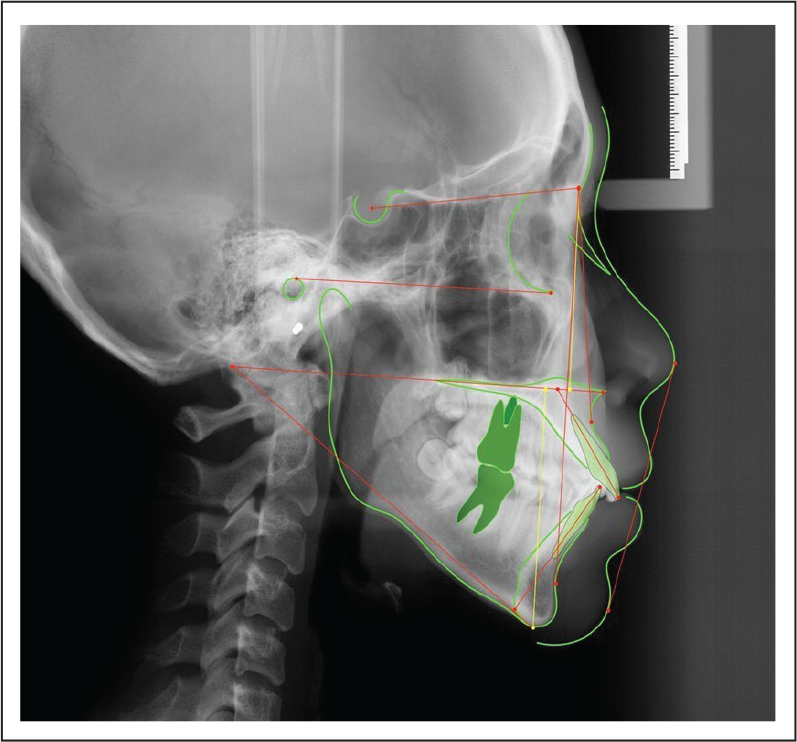
This article describes a technique for cephalometric analysis using Keynote.
Technique
Startup
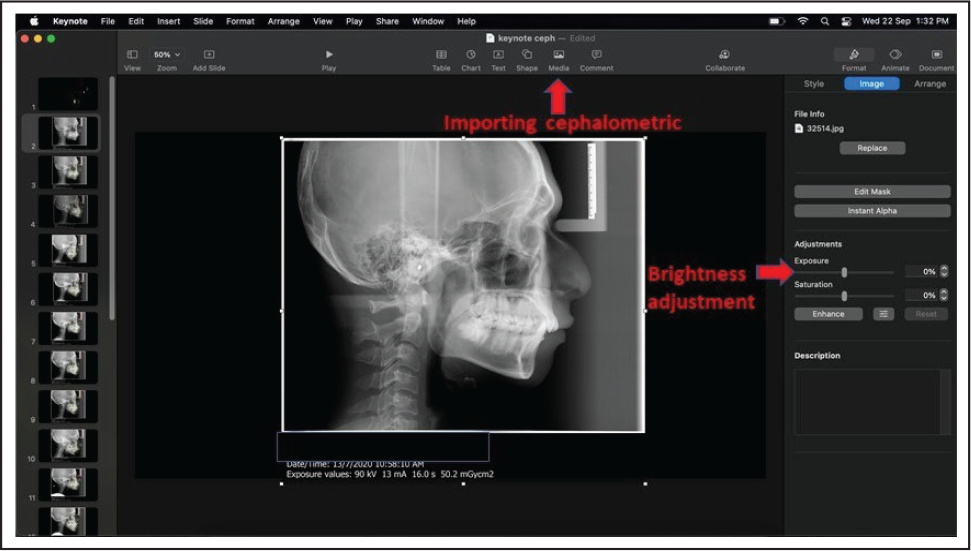
To prepare for tracing, select a black theme in the Keynote startup menu. A plain black theme is preferred, to avoid any distraction during tracing. The next step is to import the cephalometric radiograph into Keynote. Once imported, adjust the image’s exposure to ensure that all landmarks are clearly visible (Figure 2).
Tracing
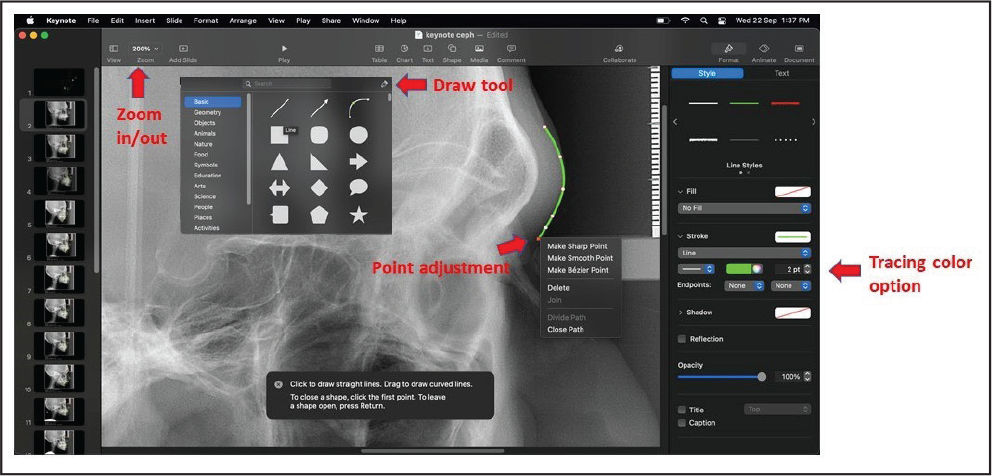
To trace the outline, select the Draw icon on the top toolbar menu. The Draw function allows the orthodontist to trace any shape (Figure 3). Then click on the image to create the first point. Next, clink on another part of the image to connect the two points. The orthodontist can connect as many points as required to outline the desired shape. Points can also be dragged after they are created, and the line adjoining any two points can be manipulated by clicking and dragging the line to accurately follow any skeletal or soft tissue outline desired. To allow better visualization of landmark points or outlines, the orthodontist can zoom in on the image.
Landmark Point and Reference Plane
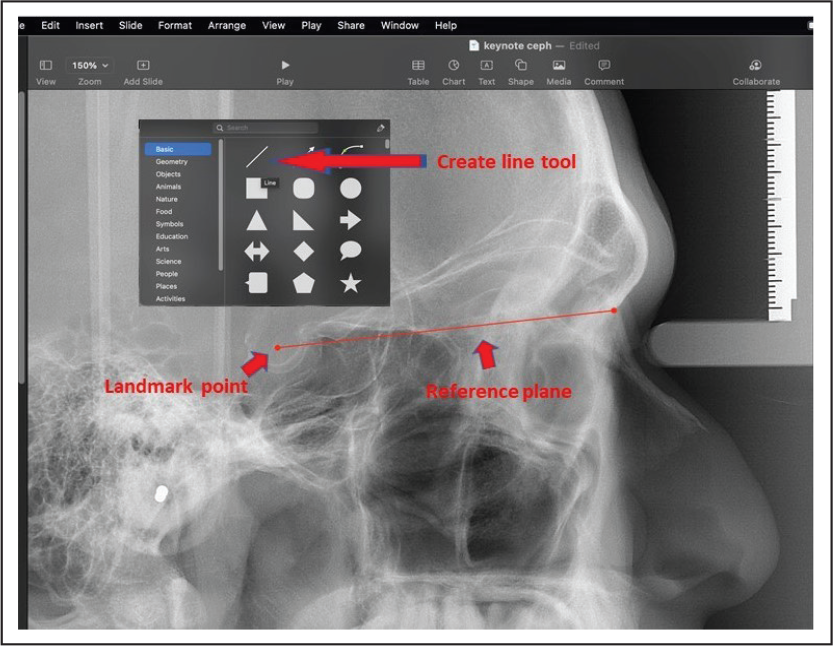
The orthodontist will create the reference plane and landmark points simultaneously. The end of the line created by Keynote will have a round tip, which can be used to represent a landmark point (Figure 4). To create a line, select the Line tool in the top toolbar menu. Connect the two landmark points with a straight line. The points and line can be moved or rotated for precise placement.
Angle and Linear Measurement
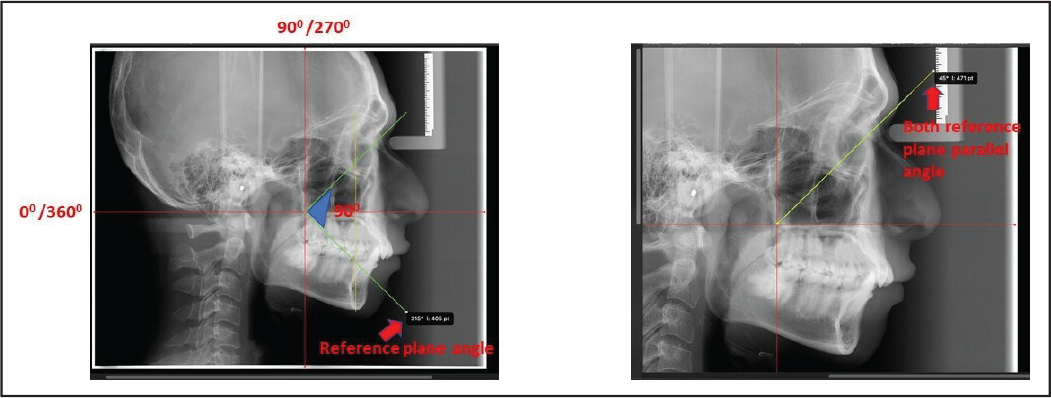
The Angle tool in Keynote can be used to measure the angle between two reference planes (Figure 5). Place the cursor at the end of one of the reference planes; this will display the plane angle. Next, move one of the reference planes until it is parallel to the other. Once parallel, measure the angle and calculate the difference. After this, simply use the “Undo” function to reposition the plane in the original correct position.
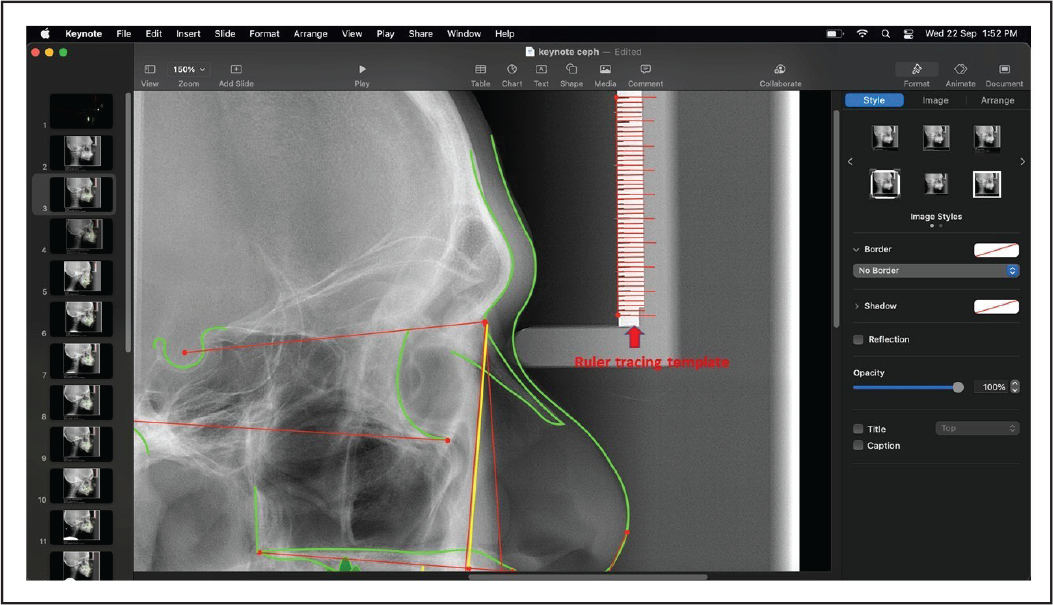
Linear measurement requires the orthodontist to create a ruler (Figure 6). The cephalostat ruler will serve as a template for tracing. Trace the outline of the cephalostat ruler using the steps explained above. All the lines forming the ruler are then merged into one object, which can now be resized and rotated as a single object as desired by the orthodontist. The template ruler can be utilized for different cephalometric analyses by first calibrating the ruler size with the other cephalometric radiograph to account for any differences in magnification.
Discussion
The use of Keynote for cephalometric tracing does not require a steep learning curve, in contrast to other software available on the market. Being freely available and preinstalled in every Apple laptop or desktop makes it a cost effective and very accessible program to any orthodontist who wishes to trace cephalometric radiographs digitally. Being a program primarily designed for presentations, Keynote can also be a teaching tool used by an orthodontic lecturer to create animations of pre- and post-treatment, as well as displaying cephalometric analyses for a large audience.
Conclusion
Keynote can be a simple and cost-effective tool for digital cephalometric analysis.
Footnotes
Declaration of Conflicting Interests
The author declared no potential conflicts of interest with respect to the research, authorship, and/or publication of this article.
Funding
The author received no financial support for the research, authorship, and/or publication of this article.
Statement of Informed Consent and Ethical Approval
Necessary ethical clearances and informed consent was received and obtained respectively before initiating the study from all participants.
