



Abstract
Throughout the Covid-19 pandemic, faculty have had to restructure classes to new formats, and expectations of flexibility may remain if and when the pandemic subsides. Quizizz™ is an online platform for quizzing and interactive lessons suitable for in-person, online, and hybrid/hyflex classes. Quizizz, which is available for free or with an inexpensive subscription, allows for increased student engagement. Quizzes or lessons may be launched “live” (synchronously) or assigned as asynchronous work, making the platform valuable for classrooms of various modalities. This article documents how to use Quizizz to set up quizzes or interactive lessons and what the student experience is like, and provides a table documenting the differences between Quizizz and other educational applications.
Since the onset of the Covid-19 pandemic, hybrid, hyflex, and online modalities have become more common, and, with continued demands for flexibility, we may not revert completely to in-person instruction. As course formats changed, many instructors have sought to make sessions more interactive. Even in in-person classes, often a handful of reliable respondents reply to in-class questions and faculty want to engage the entire class more fully. In the wake of the pandemic, students seem particularly burnt out and disengaged across many class modalities (McMurtrie, 2022), so new tools to increase engagement are useful. Quizizz™ 1 is an online platform for quizzing, polling, and interactive lessons, with a particular mission to motivate students (Quizizz, n.d.).
Active learning is a key practice of good undergraduate education (Chickering & Gamson, 1987), but hyflex, online, and larger in-person classes sometimes make this a challenge. Online quizzing or interactive slide-deck platforms like Quizizz can make classes more interactive and can be utilized to adapt some active learning activities. Quizzes or a “game show” to allow students to interact with content may be particularly valuable in online courses (Marks et al., 2005). Quizizz lessons can be done live, for in-person or synchronous online or hyflex classrooms, or can be assigned for a flipped or asynchronous classroom model.
Resource Description
Quizizz (https://quizizz.com/), which strives to be highly engaging, is one of several interactive quizzing and polling platforms for classroom use. Because Quizizz allows setting up interactive lessons, not just stand-alone quizzes or polls, it is versatile for a variety of class modalities. In addition, it is a good option for faculty wanting to try such platforms, as free and relatively inexpensive paid versions are available.
Quizizz can be used, first, for in-class or assigned quizzes. Results after a quiz can be viewed in Quizizz or downloaded as a spreadsheet. Use of a timer is optional. Explanations can be added, which pop up after a question is answered. Optional “power-ups” allow a student to stop the timer, remove two incorrect options, or answer an incorrect question again, making the quiz like a gameshow. These highly gamified options may be best for undergraduates. Live quizzes can be instructor- or student-paced (see the appendix for mode descriptions). Quizzes can also be assigned asynchronously. Students do not see the full leaderboard with asynchronous quizzes, just their own scores. Quizzes that are given live can also be assigned as practice, and instructors can allow students to take assigned quizzes multiple times. Students also have access to flashcards of the questions after taking an assigned quiz.
Lessons, on the contrary, are designed like a traditional slide deck for a lecture, but instructors can add quiz questions, polls, or open-ended questions throughout, to increase engagement. Just as with quizzes, lessons can be taught live or assigned asynchronously. Downloadable reports are available after the lesson, so participation points can be assigned, and the most challenging questions can be identified. Instructors can display a leaderboard, or not, as desired. For more information on how to set up a quiz or lesson, see the appendix.
Because students can respond anonymously to open-ended questions and results of multiple-choice polls or quizzes are presented in aggregate, using Quizizz in the classroom may create increased psychological safety (e.g., Edmondson & Daley, 2020; Mahon et al., 2018), encouraging student participation. Responses can then be a jumping off for further discussion. This can be valuable in virtual classrooms but may be just as valuable in in-person settings, where students may be particularly shy about speaking up. The platform is certainly useful in undergraduate courses, but may also be useful for graduate-level, depending on class size and modality.
Use in Teaching
Quizizz can be used in multiple ways and in multiple class formats. An interactive lesson can be used live in lieu of a standard slide-deck presentation, with knowledge-check and discussion questions built in to encourage class engagement, particularly in hyflex formats to keep students attending virtually actively participating. A lesson could also be used to present a case or current events, with polls or open-ended questions to prompt discussion. Alternatively, an interactive lesson could be assigned in a flipped classroom, with reports providing information about which topics need further elucidation in class, or freeing up class time for cases, role-plays, or other activities to cement knowledge. Assigned lessons can be used in online (asynchronous) classes, with subsequent reports to determine if additional activities or lecture videos are needed. Students can also be assigned topics to teach to their classmates in class, using Quizizz to create a short presentation and quiz for their classmates to take, either live in class or as assignments in hybrid or online asynchronous classes.
A quiz can be used as a daily ice breaker, as a reading check at the beginning of class, as a knowledge check at the end of a lecture or unit, as test-preparation review, or assigned as a graded quiz. Students should be encouraged to use their real names so that participation is identifiable, as they can enter any name they want. Only “test” mode requires students to log in. Ice breakers, polls, and open-ended discussion prompts can be useful in any class level.
One consideration in using a lesson versus a quiz is the presence of devices: With a lesson, students have their devices out for the duration of the lesson (perhaps all class period). With a quiz, students will use devices for a few minutes, putting them away afterward. In hyflex classrooms, where some students are in person and some online, devices may be used the entire class, so all classmates can interact. However, in traditional in-person classes, this may be a consideration for instructors who find devices to be a distraction for students. For instructors who prefer devices not be out for most of class, quizzes are a good option, as students may use their devices when appropriate and otherwise put them away. A clear class policy on bringing devices to class, but waiting to take them out until instructed, is helpful.
Instructors may create a class on Quizizz; doing so allows lessons and quizzes to be scheduled ahead of time, allows tracking student performance across quizzes/lessons, requires students to create a Quizizz account so they can review their own progress, and allows quizzes and lessons to be assigned to specific students. For example, if a student fails to bring a device to class, a make-up quiz could be assigned.
From the Students’ Perspective
To participate in a lesson or quiz, students navigate to joinmyquiz.com, enter the unique game code for the lesson (see Figure 1), and enter their name. In a live lesson, as the instructor moves through the slides, the student will see the current slide on their screen as well. When a quiz question is activated, students receive a 3-second countdown before the question is displayed. Once the question ends, they will see if the answer was correct, where they rank on the leader board, and how many points they have. However, if the instructor does not share their screen, they will not see how other students answered or the overall leaderboard (see Figure 2 for a comparison of student and faculty screens). When the quiz is over, students receive a summary of their scores, how many questions they got correct, as well as access to the questions they got wrong for review (see Figure 3).
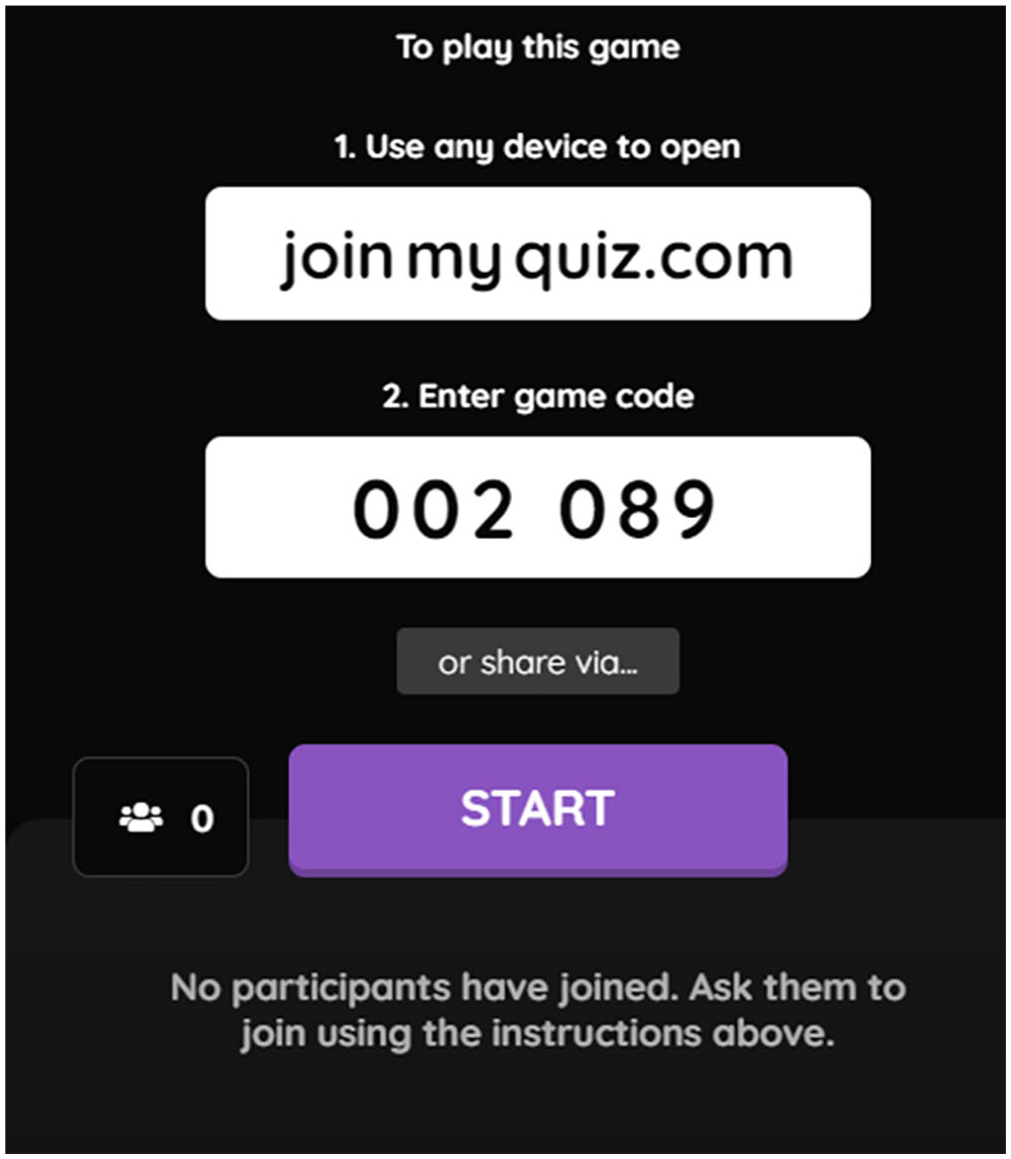
Example Student Join Code.
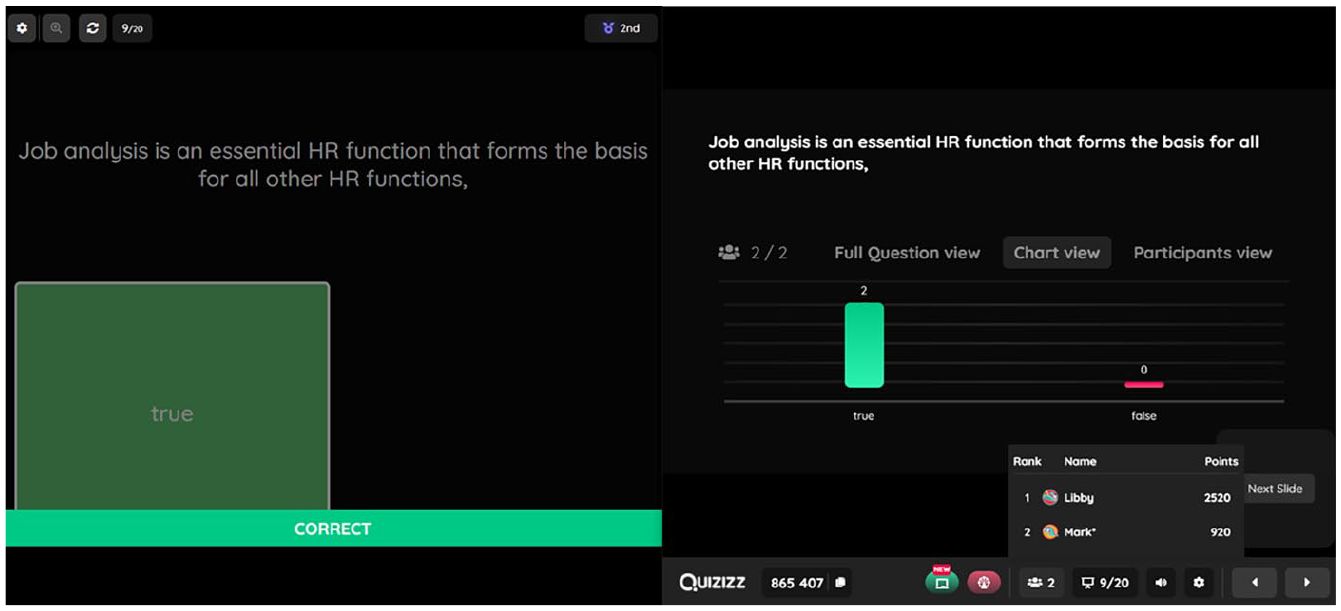
Student View Versus Teacher Dashboard.
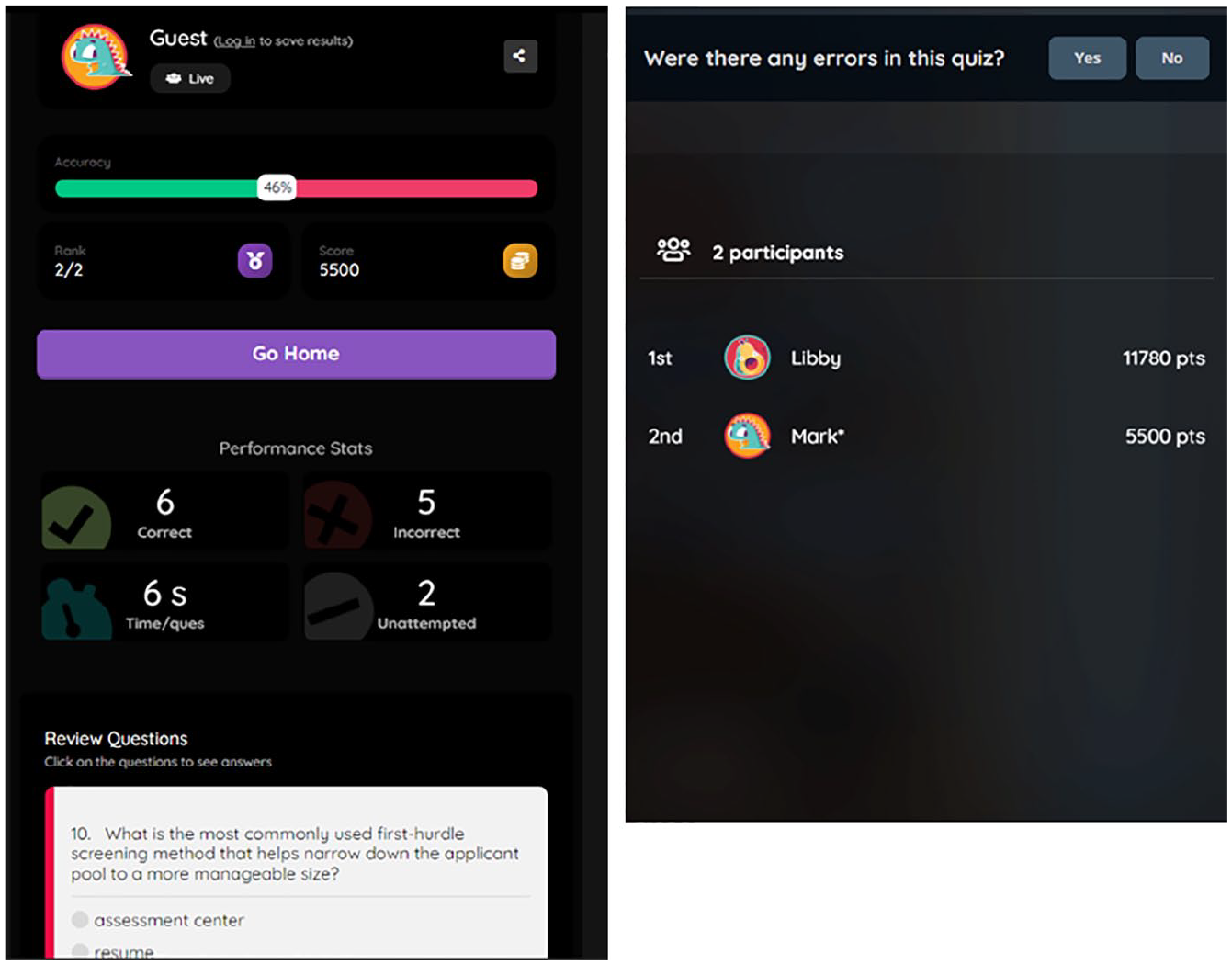
After-Quiz Student Summary Page Versus Teacher Dashboard.
With a self-paced lesson or quiz, students may advance the slides at their own pace and will be required to give a response to each question before advancing. Embedded links to outside websites will open in a new tab. Embedded Google Sheets or docs can be edited directly from the presentation. Students can also have the presentation read aloud to them, but the software will only read slides created in Quizizz, not slides imported from a PDF.
From the Faculty Perspective
As students log in, instructors will see a count of how many are connected, as well as their names. In settings, codenames can be activated. Instructors can also hide any inappropriate names or remove users who do not belong. Once a quiz begins, instructors can view which students answered the question, how many gave each response, and the leaderboard (where students rank on the quiz). Instructors can share their screen to share this information with the class, or only allow students to know how they have done, but not how others have done. Instructors will have to click past the leaderboard after each question. Instructors can disable the timer on a question-by-question basis, if they wish, or end a question early. Questions automatically end when all participants have responded.
After a quiz or lesson, instructors can access a report with the percentage correct for each participant as well as a score (if a timer is used, participants receive higher scores for responding more quickly), a breakdown per question of how many students got the question right, and an overview that quickly shows which questions students struggled with by coding questions green, yellow, or red based on the number of correct responses. When lessons are assigned, they can be specifically tied to a class set up on Quizizz, distributed by a game code or link, or shared to a specific team on Microsoft Teams or other platforms.
Analysis and Comparison
Overall, Quizizz is a low-cost option for faculty to make slide decks more interactive or use polling, quizzing, and open-ended questions to keep students engaged. (For a comparison with other platforms, see Table 1). Because even the free version is highly functional, it is also a useful tool for assigning students or student teams to help teach certain topics to the class, which can increase learning (Duran, 2016). The platform is fairly easy to use, although converting PowerPoints to a PDF before uploading them and then not being able to edit the slides within Quizizz does add extra steps to use a pre-existing slide deck, whereas other platforms integrate directly with PowerPoint. Creating a new presentation within Quizizz has some advantages in that respect. In addition, having to wait 3 seconds before every question is displayed to students does add additional time to the process that some other programs do not have; having to click past the leaderboard every time can also be annoying, but this is common in online quizzing platforms.
Platform Comparisons.
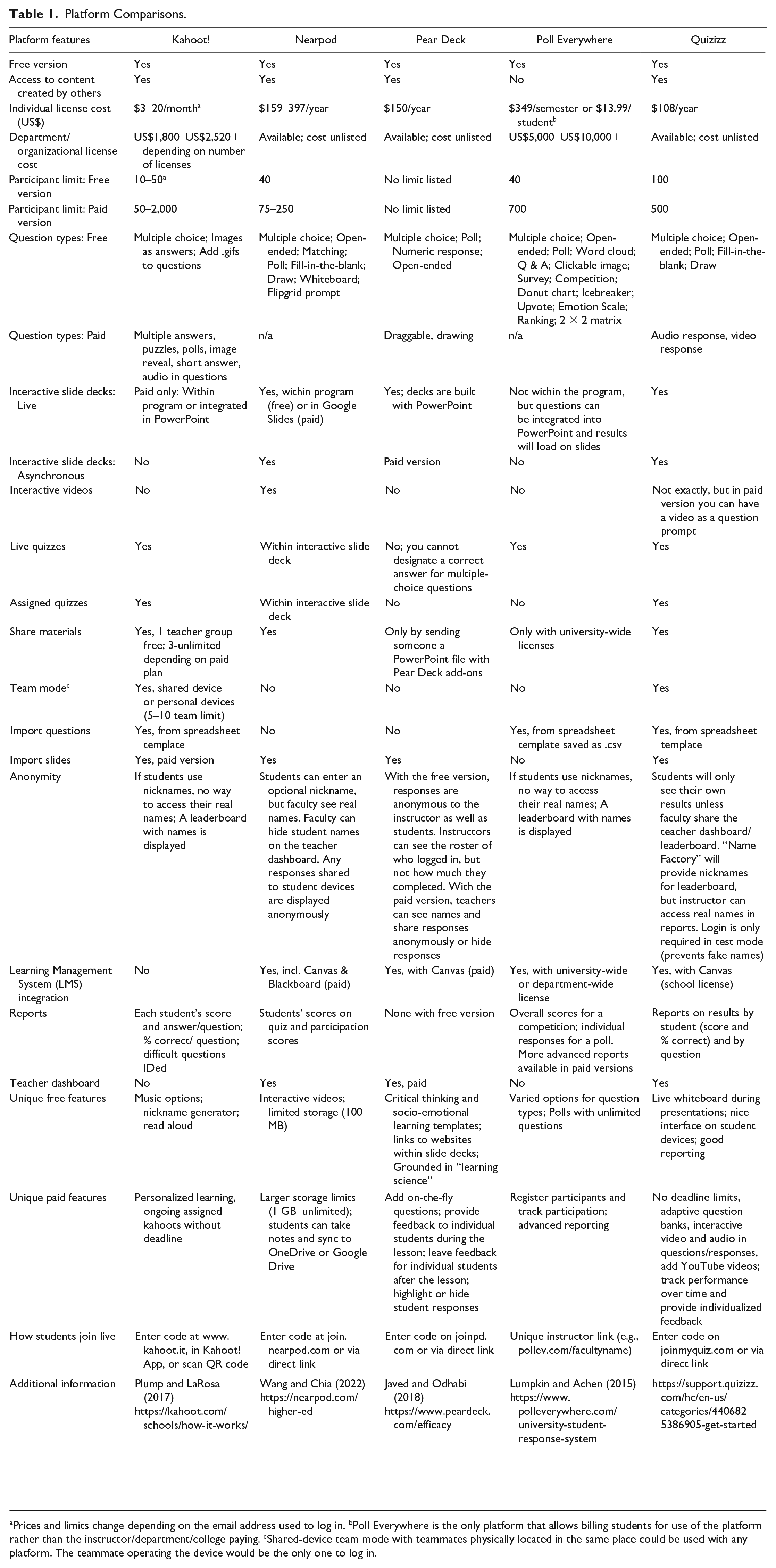
Prices and limits change depending on the email address used to log in. bPoll Everywhere is the only platform that allows billing students for use of the platform rather than the instructor/department/college paying. cShared-device team mode with teammates physically located in the same place could be used with any platform. The teammate operating the device would be the only one to log in.
As shown in Table 1, Quizizz has the largest participant limit for the free version of any platform. Although Poll Everywhere™ has the most options for creative question types, Quizizz has sufficient types for most classroom uses, provides a whiteboard so the instructor can draw on the slides live (or allow students to draw on them), and has a “spin the wheel” option for cold-calling or selecting students for an activity. Quizizz and Nearpod® are the only platforms that allow live and assigned quizzes and lessons for free. It is also the only platform other than Kahoot!® to allow a team mode for quizzes. Pear Deck™ features a very nice teacher dashboard, but other than a short trial, it is only available in the paid version. Without it, instructors cannot link responses to students, so grading is nearly impossible. With Quizizz, the teacher dashboard and extensive reporting are available in the free version. Uploading a spreadsheet of quiz questions can make quiz creation easier. In short, all platforms have some of the features of Quizizz, and some have additional features, but it is hard to find a single platform that does everything Quizizz does, particularly for free.
Conclusion
Quizizz is a useful, inexpensive platform for student engagement across many classroom modalities. With options for polling, quizzing, open-ended questions, and interactive slide decks that can be delivered synchronously or assigned asynchronously, Quizizz is a flexible tool that help faculty keep class interactive and engaging as they teach traditionally, fully online, or in hybrid formats.
Footnotes
Appendix
Declaration of Conflicting Interests
The author declared no potential conflicts of interest with respect to the research, authorship, and/or publication of this article.
Funding
The author received no financial support for the research, authorship, and/or publication of this article.
