Data collection and cleaning workflows implement highly repetitive but extremely important processes. In this article, we introduce iefieldkit, a package developed to standardize and simplify best practices for high-quality primary data collection across the World Bank’s Development Research Group Impact Evaluations department. iefieldkit automates error-checking for electronic Open Data Kit-based survey modules such as those implemented in SurveyCTO; duplicate checking and resolution; data cleaning, including renaming, labeling, recoding, and survey harmonization; and codebook creation.
The iefieldkit package is a set of commands designed to simplify a series of tedious and repetitive tasks for Stata users who are in the process of collecting primary survey data in the field. This package currently supports three major components of that workflow: survey design, survey completion, and data cleaning and survey harmonization.
The commands described in this article have grown out of the work of the World Bank’s Development Impact Evaluation Department (DIME). DIME has employed dozens of researchers and hundreds of full-time staff on more than 325 impact evaluations in over 60 countries. The DIME Analytics team supports high-quality research processes across the DIME portfolio, offers public trainings, and develops software tools and standards for the global community of development researchers.
One of the most important developments in economics research over the past two decades has been the rise of empirical data collection, especially with unique primary datasets collected by the researchers themselves (Angrist et al. 2017). The authors of iefieldkit have supported the implementation of a wide range of primary data collection in fields such as agriculture, health, energy and environment, edutainment, financial and private sector development, fragility, conflict and violence, gender, governance, and transport. They have developed workflows to support general best practices for data collection and, as a rule, develop new packages only when they fill an essential gap in Stata functionality.
The iefieldkit package provides commands that support workflows in primary data collection. There are relatively few Stata-based tools for managing that process, mainly because of its complexity and the diversity of practices adopted. The DIME Analytics team has worked to standardize some of the tools and processes used for data collection to save time during the more tedious elements of the process, improve documentation, and reduce error. Most importantly, because the quality of data collection is as important to credible research as the quality of analysis, these tools are intended to allow researchers to focus on ensuring that the data they collect are high quality. The commands in the package are therefore a first attempt to provide Stata-based tools for managing the primary data-collection process using native tools from start to finish.
Specifically, iefieldkit performs three essential tasks. First, before data collection occurs, ietestform allows for rapid error-checking of Open Data Kit (ODK)-based1 electronic surveys, including best practices for SurveyCTO-styled forms.2 This ensures that data, once collected, will import in Stata-friendly formats—for example, avoiding name conflicts and ensuring compliant variable naming and labeling. Second, while data collection is ongoing, ieduplicates and iecompdup provide a workflow for detecting and resolving duplicate entries in the dataset, ensuring that the final survey dataset will be a correct record of the survey sample to merge onto the master sampling database. Finally, once data collection is complete, the iecodebook commands provide a workflow for rapidly cleaning, harmonizing, and documenting datasets.
All three commands use spreadsheet-based workflows so that their inputs and outputs are significantly more human-readable than Stata do-files would be, completing the same tasks, and these tasks can be supported and reviewed by personnel who specialize in field work rather than code tools. The increasing diversity and specialization of research teams has made accessibility to non-Stata-proficient personnel an essential component of data management workflows, and iefieldkit takes this development seriously. All code for the package is open source and available for public contribution and comment on GitHub at https://www.github.com/worldbank/iefieldkit.
2 The ietestform command
Many contemporary data-collection efforts use digital survey technologies, such as the open-source ODK or proprietary extensions of ODK, like SurveyCTO. Because data are often collected for researchers by third-party firms or local partners, quality assurance prior to sending surveys to the field is essential. Because the surveys themselves are often created collaboratively between topic experts, field staff, and data analysts, our teams identified the possibility of saving a lot of time by automating a “quality checklist” that is often overlooked in practice. This section provides extensive details on that specific functionality, some of which requires some familiarity with ODK practice and terminology, but anyone who collects data using third-party software may be interested in how these checks can be implemented using Stata even before data are in hand.
In ODK and SurveyCTO, survey forms are typically built in Excel using a specialized structured syntax.3 Because the survey forms are long and often created using copied-and-pasted syntax or sections from other surveys or from demo files, it is easy to make minor syntax errors or omit Stata-optimized practices that may have major consequences later. The ietestform command is used to test ODK and SurveyCTO-based survey forms before they are used in the field for a range of technical issues and Stata-optimized practices. This section assumes you are familiar with ODK syntax. If you are not using ODK-based tools, you will not likely use this command and should skip to section 3.
The SurveyCTO server has a built-in test feature that tests the ODK syntax of a form when it is uploaded. The ietestform command is not meant as a substitute for these tests but a complement, because the built-in test identifies only strict syntax failures. For example, ietestform uses a heuristic search to test for potential typos that would lead to unintended logic, whether the data generated will be in Stata-suitable format, and whether these issues would fail strict syntax checks. The command also points out commonly used best practices if not already implemented in the survey. Specifically, it creates an easily readable output report to ensure that survey practices that may produce unexpected behaviors are used only intentionally. The command thereby provides an iterative, documented workflow for the quality-assurance stage of survey development.
The ietestform command is intended to be used when developing a survey form after it is tested on a SurveyCTO server to make sure there are no syntax errors but before the survey is deployed in the field. The ietestform command performs several tests. The syntax for the command is
The ietestform command outputs a test report with various flags indicating potentially improper practices in a CSV format, which is optimized for display in a number of software applications as well as for version-tracking with software like Git. Some of the report entries flag code errors, and others detect practices that are not strictly wrong but that may indicate potential errors or bad practices (and are therefore intended for manual review). There will often be cases where the command flags a line as suspicious, but it is in fact the best way to construct the questionnaire. The goal of ietestform is not to produce a report with no flags but to ensure that practices that may cause serious problems if used unintentionally or incorrectly are validated for functionality.
2.1 Tests run by ietestform
This section describes tests related to best practices on how and how not to use features in the ODK programming language to ensure data quality and reduce the risk of creating errors that interrupt the field work. Again, note that the command does not check whether the ODK syntax is valid. The command is intended to be used after the survey form has passed the ODK syntax test on the SurveyCTO server, and some tests in the command assume that the ODK syntax has already been tested and is correct.
All nonnote fields are required and no note fields are required
The required column ensures that enumerators (the people collecting data in the field) cannot proceed with the survey before a response has been filled in for the indicated field. This is in general a useful data-quality feature because it prevents incomplete surveys from being submitted and helps ensure that enumerators complete surveys in the intended order. A field that is required cannot be bypassed until data have been entered for it.
ietestform tests that all fields that are not of type note (that is, fields with only a prewritten text note to be read by the enumerator and no data input) have the value “Yes” in the required column. This test adds to the report a list of all fields that are not required and not of type note. Even when some type of nonresponse (such as “Declined to answer”) is acceptable, the absence of a recorded answer to represent that response should not be accepted. The absence of a recorded answer should mean only that the question was not asked during the survey. When applicable, there should always be a valid method to record meaningful reasons for nonresponse. When it may be acceptable for a question to be skipped, an appropriate relevance expression should be used to implement this functionality.
Some fields that are often intentionally not required are fields that record GPS coordinates. Such fields have the type geopoint, geoshape, and geotrace. If you know that the devices you will be using for data collection will have no problem collecting GPS coordinates, then keeping those fields required ensures you will get valid data points. However, if you are working in a context where GPS coordinates may be difficult to collect, then it may be a good idea to not require these fields, so that the enumerator can complete the other fields and submit the survey even when it was not possible to record GPS coordinates. These fields will still be flagged in the report, but as long as you are happy with your decision, you can still deploy the survey.
Fields of type note can be required but cannot record data. Therefore, it is not possible to advance a survey past a required note field. If an enumerator encounters a required note during a live survey, there is no way to continue with the interview or to submit the data already collected. There are cases when this functionality is intentionally used. Because you cannot skip required note fields, they can be used alongside a relevance condition to create the equivalent of an “error” state: if some previous input is absolutely incorrect, this will force the enumerator to go back and correct it before continuing data collection.4
All begin_group and begin_repeat fields have a corresponding end_field
This test checks that all begin_group fields are matched by an end_group and that all begin_repeat fields are matched by an end_repeat. The primary functionality of this test is also implemented by the ODK syntax tester on the SurveyCTO server. However, the report outputted by ietestform provides additional information that makes it easier and less time consuming to solve this problem, especially when the survey form is very large. For example, ODK does not require the end_group and end_repeat to have field names, making it difficult to provide pointers to the source of the error in the underlying survey form. ietestform fills that gap by requiring those fields to have names and including the names as well as the form row number of nonvalid begin and end pairs in the report.
For a begin and end pair to be valid in ietestform, the following three criteria need to be fulfilled:
For each begin field, there is an end field.
The corresponding end field is of the correct type, so that a begin_group is not closed by an end_repeat and a begin_repeat is not closed by an end_group.
The end field names match the begin fields. The SurveyCTO test makes sure that the begin names are unique, so each pair will also be unique if this part of the test is valid.
Variable naming and labeling is Stata optimized
ODK applies very few restrictions to field names and other inputs. These are converted into metadata for Stata, which places many more restrictions on these values. Therefore, it is not uncommon for ODK-created datasets to contain, for example, variable names and labels that are not valid in Stata and will cause error. In ODK, for example, all names must be unique, and there are a few special characters that are not allowed. These restrictions are tested by the ODK syntax test on the SurveyCTO server. The additional tests done by ietestform ensure that names that will be imported by Stata are valid and optimized for use there.
ietestform first returns a flag if you have not programmed the survey to return Stata-specific labels. SurveyCTO forms can be programmed to display questions in multiple languages. This is done by creating label columns named label:english, label:swahili, label:hindi, and so on. When exporting data into Stata format through SurveyCTO Sync, you can choose which language to use for labels. Labels can obviously be added and modified once the dataset has been opened in Stata. However, the simplest way to add them to a dataset created in SurveyCTO is using this feature to create Stata-optimized labels by adding a “language” called label:stata. If this practice is not used, the dataset is often not labeled as intended. Labels in ODK contain the full survey question, which is rarely a suitable variable label in Stata. Most often, they will be too long, but they may also include special characters, line breaks, or HTML code that may be difficult to handle. The same test is applied to the choices sheet, so that all labeled variables use Stata-compliant value labels.
Stata variable names are limited to 32 characters and variable labels to 80. Longer names or labels will be truncated or replaced with a generic name of the format var1, var2, and so on, if the truncated name is no longer unique. All of these cases can be resolved in Stata, but it is much simpler to ensure that all names are collectively unique at 32 characters before collecting data. ietestform therefore flags all fields with variable names longer than 32 characters or Stata labels longer than 80 characters. Furthermore, ietestform also flags any fields with leading (“ ABC”) or trailing (“ABC ”) spaces because these can cause unexpected problems.
This test is extended to fields in repeat groups whose names will be too long when imported to Stata in wide format, as well as to fields in repeat groups where the risk of overlong names is high but not certain. When you use a SurveyCTO-generated Stata import do-file or export a dataset in wide format, a suffix is added to the names of variables that are created inside repeat groups. For example, if a group of questions is repeated three times, the wide version of the resulting dataset will contain three variables for each question in the repeat group. Each of these three variables will have the same name, followed by _1, _2, and _3. Therefore, variables created inside a repeat group may not have a name longer than 30 characters. If the field is in a nested repeat group (a repeat group inside a repeat group), it will be suffixed once for each repeat group. So the actual constraint used in this test is given by this formula: 32 − (2 × depth of nested repeats). This test lists all variables that have longer names than that constraint. It assumes that there are no more than 9 iterations in each repeat group. If there were more than 9, the suffixes would be 10, 11, etc., which take up three characters. The second test lists all fields with a field name longer than 32 − (3 × depth of nested repeats). Whether this will create an issue with long names is uncertain, but if field names are so long that they might be caught in this test, then it is probably a good idea to make them shorter.
ietestform also flags name conflicts that could result from repeat suffixes that are added to fields inside a repeat group. SurveyCTO’s ODK syntax tester tests that all names are unique. The names myvar and myvar_1 are not duplicates in the ODK syntax test, but if myvar is in a repeat field, it will be suffixed with 1 for the first iteration of that variable, and that will create a name conflict with the variable created from field myvar_1.5 Therefore, ietestform flags all fields inside a repeat group that are at risk of creating this type of name conflict. For example, if there is a field named myvar, the command checks whether there are any other field names with the format myvar_#, where # is one or more digits. This is extended to nested repeat groups sensibly.
Test choice lists for typos, missing values, and redundancies
The ODK syntax is very lenient when it comes to the definition of choices lists, which are translated into Stata value labels. It does not have robust checks for typographical errors, duplication, or missingness that will affect Stata datasets in unexpected ways. ietestform flags these and other “suspicious” patterns because they are common by-products of coding errors or redundant code likely to cause future errors; for example, unused choice lists and duplicated labels could indicate that the list elements were copied and pasted accidentally or incompletely. ietestform checks that all lists defined in the choices list sheet are actually used in at least one select_one or select_multiple field in the survey sheet.6ietestform also flags any duplicates in list names and elements in the choice sheet because these will cause unexpected behavior when converted to Stata data.
In Stata, categorical data are often stored as integers attached to value labels. In SurveyCTO, other formats for categorical response questions are allowed, such as strings. Although not strictly required, our team recommends using labeled integers rather than strings. Strings take up significantly more memory in large datasets and cannot be used in many Stata functions that handle categorical variables. ietestform therefore flags all list items that have a nonnumeric value in the value or name column. ietestform also flags any list item that has a value in the label column but no value in the value or name column. It then flags any cases where the opposite occurs. This is common when a survey is programmed in multiple languages and one is not fully completed. ietestform also flags labels in the same choice list that are identical—that is, one label that is listed twice for the same choice list but with different codes—because this is likely a typo.
3 The ieduplicates and iecompdup commands
The ieduplicates and iecompdup commands were designed as part of a workflow to process duplicate observations in primary data in a reproducible and transparent manner. In such a workflow, these commands are used to identify and resolve duplicated occurrences of an ID value in raw survey data, ensuring that each observation is uniquely and fully identified. The commands combine four key tasks involved in solving duplicated ID values: i) identifying duplicated entries; ii) comparing observations with the same ID value; iii) tracking and documenting any changes made to the identifying variable; and iv) applying the necessary corrections to the data.
On the first run of ieduplicates, a duplicate correction template is created listing all observations containing duplicated values of an ID variable that is intended to be unique. Observations are required to have a “key” variable that is unique in the raw data by construction so that they can be identified in processing.7 After creating this correction template, ieduplicates will, by default, display a message pointing out that the intended ID variable does not uniquely and fully identify the data and stop your code, so you know to fill the correction template.
Once the correction template is created, iecompdup helps identify the reason why duplicated entries were created, so they can be resolved. The decision on how to correct a duplicate is always a qualitative decision. iecompdup compares the duplicated entries variable by variable. The output format can be selected by the user, depending on his or her decision process.
The commands are therefore intended to be used as follows:
Run ieduplicates on the raw data. If there are no duplicates, you are done. If there are duplicates, the command will output an Excel file containing a duplicates-correction template, display a link to this file, stop the code execution, and show a message listing the duplicated ID values. You can prevent the command from stopping your code by specifying the option force, in which case it will remove all observations with duplicated ID values and allow the code to continue.
Open the duplicates correction template. This template will list duplicated entries of the ID variable, information about each observation and five blank columns. Fill the blank columns with the necessary corrections and comments on the solution process.
If the information in the duplicates correction template is not enough to solve a case, use iecompdup for the listed ID value to obtain more information.
After entering all the corrections to the duplicates correction template, save it in the same location with the same name, overwriting the previous file.
Run ieduplicates on the raw data again. The corrections you have entered in the duplicates correction template will be applied, and only duplicates that are still not resolved will be removed this time.
Save the resulting dataset under a different name so the raw data are not overwritten.
Repeat these steps every time you receive new data.
An example of a basic duplicates correction template created by ieduplicates is displayed in figure 1. The first six duplicated entries have been solved by filling columns E to I. When ieduplicates is run again, they will be dealt with as indicated in these columns. The other two are still to be resolved, so the next time you run the command, your code will stop unless the template is filled for them or you choose to drop them through the force option. The function of this report is to impose a clear and consistent structure to document changes made to the information contained in the identifying variable.
Partially filled ieduplicates correction template
3.1 Listing and resolving duplicate observations with ieduplicates
The purpose of ieduplicates is to ensure that observations are uniquely and fully identified. As inputs, ieduplicates requires, first, a singular unique ID variable, which, if repeated, would be an unacceptable duplicate in the dataset.8 A file name for the duplicates correction template, including an absolute file path,9 must be specified through using. Finally, the command requires a guaranteed way to uniquely identify each observation in the dataset, in the form of one or multiple variables. Software like SurveyCTO create these automatically by design, commonly naming such a variable a “key”. Other data-collection methods should have such an identifier built into their data-collection process because solutions such as using n will usually not be sufficient. The formal syntax is
When ieduplicates runs in a dataset, it identifies all observations with duplicated values with regard to the variable specified as ID_varname. If there are no duplicates, the command will display a message saying the dataset is uniquely and fully identified by this variable. In this case, no output will be saved, and data will be left unchanged. If there are duplicates, the command exports an Excel sheet, saved to the file specified after using, with information on these observations, and stops your code with a message listing the values in the ID variable that are repeated. This is meant to operate similarly to the command isid, but offering both information to help identify the duplicated observations and a self-documenting method to easily fix them.
Alternatively, if the force option is specified, it will remove all observations containing duplicated values of ID_varname from the data and return only uniquely and fully identified observations. This may be useful because many other quality checks require unique IDs in the dataset and cannot be completed until the ID variable uniquely and fully identifies the data; yet resolving duplicated IDs is often among the slowest correction processes. For example, if a household with ID A123456 was selected for survey audit, but you incorrectly have two observations that were given the ID A123456, then it is better to resolve that duplicate first before trying to compare the audit survey answers to either of the observations the ID potentially represents. The option force is required in this case so you know that ieduplicates is making changes to your dataset, and do not overwrite the original raw data with the one that has been returned, because you would lose the original data. To avoid this, always save the dataset with removed duplicates with a different name.
The duplicates correction template exported by ieduplicates contains at least 11 columns, in the following order: ID_varname, indicating the value of the ID variable in the observation; duplistid(), the unique identifier of the observation in the duplicates correction template; datelisted(), indicating the date the observation was first included in the template; correct(), drop(), newid(), initials(), and notes(), blank columns to be filled in by the user to correct the data; varlist, one or multiple columns containing the values of the variables specified in uniquevars() for the observations in the template; and listofdiffs(), which lists the variables in the dataset that are different across the duplicate observations. The names of the columns can be changed by specifying the column title desired within their respective options.
Inside the template, you can indicate corrections to resolve the duplicated observations. By this method, the completed template becomes a permanent documentation on how duplicated IDs were resolved from the raw data. Three options for resolution are offered as columns in the template: correct(), drop(), and newid(). If you want to keep one of the duplicates and drop another, because they are double recordings of the same observation, then write “correct” in the correct column for the observation with the key_varname you want to keep and “drop” in the drop column for the one you want to drop. If you want to keep one of the duplicates and assign a new ID to another one, write “correct” in the correct column for the observation you want to keep and the new corrected ID value in the newID column for the observation that you want to assign a new ID to. You can combine these two methods if you have many duplicates with the same ID. Note that you must always indicate which observation to keep for each duplicate set. After you have entered your corrections, save the file, and run ieduplicates again to apply the corrections—ieduplicates will automatically recognize that a partially completed template is already there.
Because the expectation is that the command will be used frequently as the data are collected, ieduplicates also manages a subfolder called /Daily/, where it saves dated backups whenever it is rerun in case the main corrections template or any contents are deleted. If two different templates are generated the same day, the second will be saved with an additional time stamp on the name. To restore a backup version, simply copy it out of the Daily folder, and remove the date from the name. The option nodaily suppresses the creation of backups.
3.2 Analyzing duplicate observations with iecompdup
ieduplicates not only identifies duplicates but also gives you some hints on how to resolve them by listing the names of the variables that are different across the compared observations. Although this list could be very long, we restrict it to 250 characters to save space—it will be most helpful when only a few variables are different, and listing out all the variables in the dataset does not help. Furthermore, this comparison can be done only when there are exactly two duplicates. When there are more differences than can be stored by ieduplicates, or more than two duplicates, you can use iecompdup to explore differences. iecompdup requires as inputs the name of the intended unique ID variable (the same one as in ieduplicates) and the value that variable takes in the duplicate observations you wish to compare,
where ID_varname is the name of the ID variable and ID_value is the value of the ID variable that is duplicated.
If you have several pairs of duplicates, you will need to run this command multiple times to see the comparison for each duplicated value of the ID variable. If there are more than two observations with a particular ID value to be compared, the command will return an error. This is because iecompdup can be run only on two duplicates at a time: the multiway relationships among duplicate groups larger than two may be too complex to be informative. In this case, you should use the if qualifier to select the pair of observations to be compared, usually by specifying the values of a uniquely identifying variable in the selected observations. Another solution is to use the option more2ok. This option allows the command to pick the two first observations in the sort order by default, in which case a warning message will be shown so that the user is aware that the sorting of observations will affect the result.
The default output for iecompdup is information on the number of variables where the duplicate pair has identical values and where the duplicate pair has different values. Two lists with the names of these variables are returned as macros. Specifying option didifference will also make the command print the list of variables with different values. The option keepdifference will keep a dataset containing only variables with different values across the duplicate pair (effectively dropping those that are not of interest). The option keepother(varlist) may be used to retain additional variables that are useful for analyzing the duplicate pair.
After running iecompdup, you will be able to browse the dataset and explore the differences between observations to determine the best way to correct the duplicates. We have identified three cases as the main reasons for the occurrence of duplicated IDs when working with SurveyCTO. The section below lists them and indicates how iecompdup can be used to identify which of these cases applies to a particular pair of duplicates. The general picture should be the same even if you are using different software, but some details might be different. No output from iecompdup can guarantee any of the cases below, but most of the time, the output will still be conclusive for one of the three cases.
Case 1: Double submission of the same observation, with the same survey data values.
Case 2: Double submission of the same observation, but with modified survey data values.
Case 3: Incorrectly assigned ID.
Case 1 error is often a consequence of a circumstance like poor Internet connection during data collection. If submission of data to the server is interrupted before completion, the incomplete data may still be saved (SurveyCTO servers never delete any data). When a second submission is received, it is also saved. The server cannot tell intentional and accidental submissions apart. In iecompdup‘s output, such cases would result in two observations with very few differences, coming mostly from metadata such as submission time or submission ID (the KEY variable in SurveyCTO). If no media files (audio, images, monitoring) were used and all differences come from metadata, the user can resolve this according to his or her own practice. However, when a submission is interrupted, it is common for large media files such as audio or video to not upload correctly. Those files do not always appear as variables in Stata, depending on the data-collection software, so in some cases only metadata variables will be different. This could be a field such as a filename pointer variable, which sometimes is submitted even when the file is not; therefore media files external to the data will need to be checked carefully in duplicated observations.
Case 2 errors are possible but rare in most data-collection software because it is bad practice to allow multiple complete observations with the same ID to be validly submitted. Recent advancements in “case management” workflows are available on most survey software to control this process. However, Case 2 errors may still occur if an observation is modified after the first submission and then resubmitted. Sometimes, there is a need for modifying data already submitted; but then it is much better practice to do so in a do-file when the dataset is cleaned (such as through “revisions” workflows in the survey software). This way, the manual modifications are properly documented. In iecompdup, this would show up as a pair where the submission metadata differ and some observational data also differ. These cases have to be manually examined and followed up with the field team responsible for the submission to confirm which entry should be kept.
Case 3 errors can occur by mistake any time. This can be due to typos or to protocols not being followed correctly in the field. In iecompdup, this would show up as submission data differing, as well as many differences in survey responses. You will need to follow up with enumerators and supervisors responsible for this submission and assign a new ID to one of the observations based on what you learn when investigating this case.
4 The iecodebook commands
Once data collection is complete, the data must be cleaned before they can be analyzed. The iecodebook commands are designed to automate repetitive data-cleaning tasks in two typical situations: iecodebook apply, where many variables need to have arbitrary rename, recode, or label commands applied to them; and iecodebook append, where two or more datasets need to be harmonized to have the same variable names, labels, and value labels (“choices”) to be appended together. iecodebook also provides an export subcommand so that a human-readable record of the variables and their labels in a dataset can be created at any time and a template subcommand that prepares the codebooks for the other subcommands.
As its name suggests, the iecodebook command is structured around Excel-based “codebooks”. The purpose of these codebooks is to process and document data cleaning in a format that is both human and machine readable. By completing these codebooks with data-cleaning instructions for Stata, iecodebook creates a metadata record that is easier to write than a long sequence of data-cleaning commands in a do-file and easier to read later. This functionality is implemented via four subcommands:
iecodebook template creates an Excel template that describes the current or targeted datasets, with empty columns for you to specify the changes or harmonizations for the other iecodebook commands.
iecodebook apply reads an Excel codebook that specifies renames, recodes, variable labels, and value labels and applies them to the current dataset.
iecodebook append reads an Excel codebook that specifies how variables should be harmonized across two or more datasets—renames, recodes, variable labels and value labels—applies the harmonization, and appends the datasets.
iecodebook export creates an Excel codebook that describes the current dataset and optionally produces an export version of the dataset with only variables used in specified do-files.
4.1 Apply cleaning commands to the open dataset
The most common data-cleaning tasks are renaming variables, applying variable and value labels, and recoding values. The iecodebook apply subcommand provides a workflow to execute any number of these commands without writing Stata code. Instead, the dataset is first translated into a template with each line describing the contents of a single variable. Then, the user fills out the template, creating a codebook that specifies all the cleaning commands he or she wishes to execute. The iecodebook apply subcommand reads these commands and executes them all with a single line of Stata code. The resulting output is a cleaned dataset and a highly readable record of the cleaning commands applied to it.
First, create an apply template with the dataset open:
iecodebook template using "/path/to/codebook.xlsx" , [. replace]
Next, fill out the template with the specific instructions desired, then apply the completed codebook to the open dataset by writing
For example, running
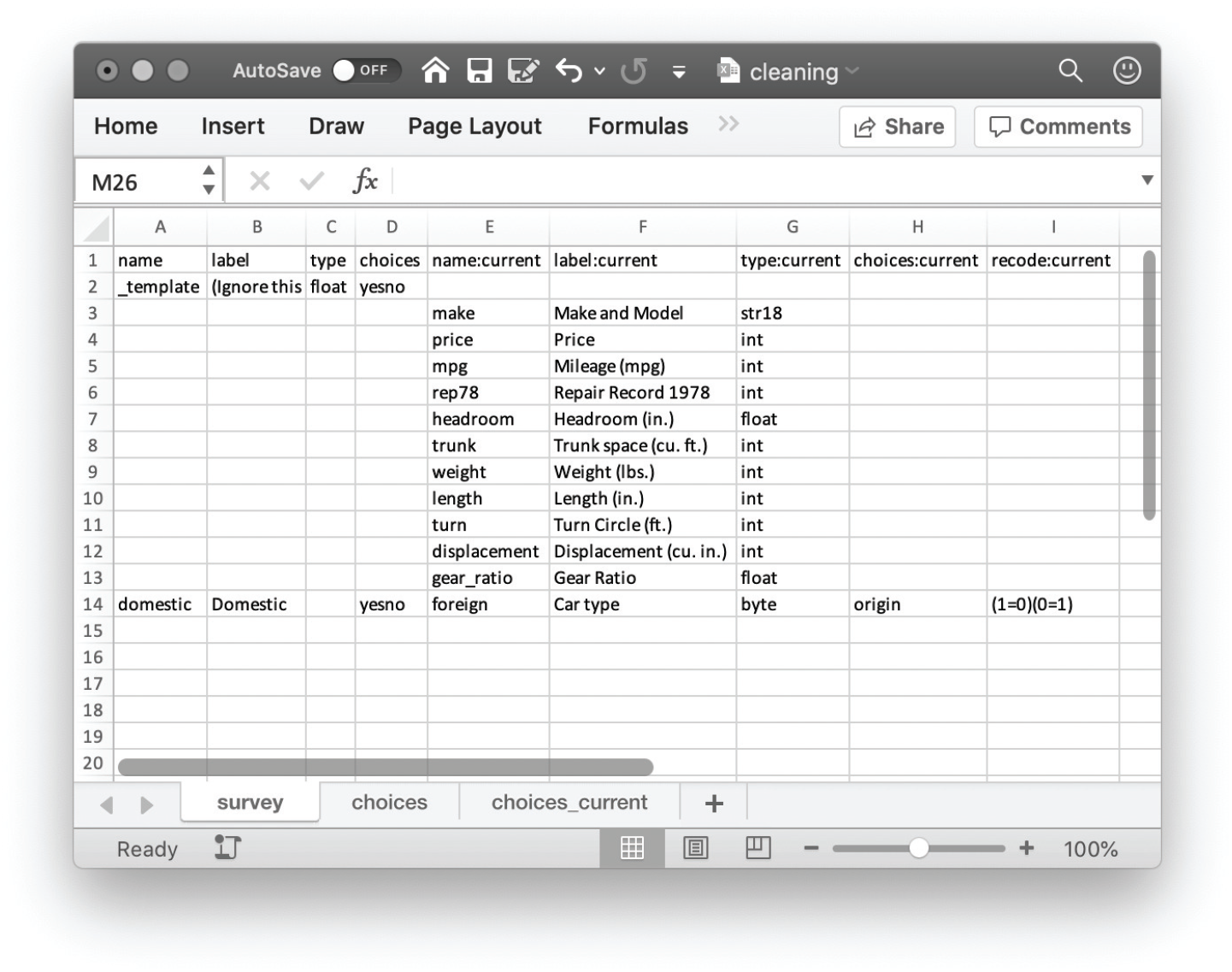
produces a template codebook reflecting the current state of the data, as displayed in figure 2 after resizing the columns.
iecodebook apply data-cleaning codebook template
To apply changes to the data, complete the name and label columns to prepare rename and label variable commands for the current dataset, respectively. To apply value labels, enter a label name in the choices column, and create the corresponding value label in the choices sheet (every template includes a demo yesno label as a guide). To recode data values, use the usual syntax (rule) (rule)… in the recode:current column. The data types are given for reference only; the iecodebook command cannot change them. Figure 3 shows an example of what you might write to make some adjustments to the foreign variable.
iecodebook apply codebook filled out with changes to be applied
To apply the changes, you would then run the following command:
Note that the correct command is created by replacing template with apply. By default, all variables with no adjustments will be left as is. However, this is not required: drop specifies that all variables lacking a final variable name in the name column be dropped from the dataset. Alternatively, the user can place single periods, “.”, in the name column to drop variables one by one. The missingvalues() option allows global missing-value codes to be propagated to all value labels. All value-label lists must be re-created in the choices sheet (it is blank by default, except for a demonstrative yesno value label), but all value labels from the original dataset are available for copy-paste from the choices_current sheet.
4.2 Append and harmonize multiple datasets
A common downstream task in data collection is to combine two or more sequential rounds of surveys, or, similarly, to combine similar survey instruments conducted in different settings. This is always harder than it first sounds. Inevitably, updates or contextualizations, or both, have been made to at least one of the datasets, so that a simple append command will not produce the desired data structure. Most often, these changes cause desynchronization of variable names, variable labels (including translation), value labels, and data types.
The iecodebook append subcommand offers a rapid workflow for documenting and resolving these differences across multiple datasets. The general syntax of its template subcommand is
The match option automatically aligns variables from multiple datasets if they share a name with a variable in the first dataset and is optional for the template subcommand only. To append the datasets using the rules from the codebook, use the append subcommand:
The surveys() option is required in both steps and must match between them. The user should specify, as a list of single words, the names of the surveys (which the command will place and then look for in the codebook headers). The command will also create a survey variable in the resulting dataset by default, whose value label contains these names—to change the name of that variable, use the generate() option in both commands. The report option exports a codebook with the results for quick reference of the resulting dataset; the replace option allows it to be overwritten.
To demonstrate the usage, we will create two datasets that have similar data but with different structures, then combine them using a codebook. Run the following:
This should produce the harmonization codebook template shown in figure 4.
iecodebook append harmonization codebook template
Specifying match would cause it to appear like figure 5. Note that in this case the variables are ordered according to the first dataset they are encountered in; they are unaltered in the underlying datasets, and iecodebook will never reorder variables beyond the functionality of the built-in append command.
iecodebook append harmonization codebook template using the match option
In either case, to resolve the differences in naming and labeling between datasets, you might modify the completed codebook to look like figure 6. Note the key functionality of harmonization—variables from different datasets that are intended to be represented by the same variable in the final dataset are placed by the user into the same row. iecodebook append understands this to mean that they should have the same final variable names, labels, and value labels applied to them so that they append properly. recode commands must be handled dataset by dataset to prepare for this; therefore, there is one recode: column for each data source as well as choices sheets for reference.
iecodebook append codebook, filled out with data harmonization instructions
There are two important differences from the apply syntax. First, the default is to keep only those variables that are explicitly given final names in the name column. This is to encourage explicit manual review of each variable. We note that this process can be sped up dramatically using Excel features such as splitting panes and formulas to rapidly move information from one portion of the spreadsheet to another. The keepall option may be specified to retain all variables from all datasets (except those flagged for deletion with a single period in the name column), but the user should check the final dataset carefully because appending variables without explicit review may cause unintended results (identical to use of the built-in append command without the force option). Again, note that you will have to manually re-create the value label lists in the choices sheet but that the data labels from your original datasets are available for copy-paste from respective choices sheets, as in figure 7.
choices sheet in a codebook
To execute the command, type
The combined dataset will yield the following cross-tabulation, and, if the report option is specified, a codebook titled codebook_report.xlsx will be created in the same location as the append codebook documenting the final state of the dataset for quick reference.
4.3 Export a codebook for an existing dataset
The iecodebook export command provides a simple utility for documenting the current state of a dataset and for preparing a trimmed “release” version of a dataset. The syntax is
The base command will simply produce a record of the dataset’s contents at the specified location. If the trim() option is specified, iecodebook export will read the contents of the specified do-files; drop any variables that do not match the contents; restrict the dataset according to if and in as specified; and save the results in the same location as the codebook as a .dta file with the same name. Note that this is a new functionality and is imperfectly implemented: trim() will not, for example, correctly parse code that relies on macros to select variables. Therefore, please check that your results run and reproduce correctly after using this option. (We are working on a more fully featured version for future release.)
For example, given a do-file titled analysis.do containing only the line summarize foreign mpg trunk and auto.dta, the command
iecodebook export using "codebook-trim.xlsx", trim("analysis.do")
saves a codebook called codebook-trim.xlsx and a dataset called codebook-trim.dta in the same location. Both contain only the variables foreign, mpg, and trunk because they are mentioned in the do-file.
Footnotes
5 Programs and supplemental materials
The iefieldkit commands are hosted on GitHub and can be installed by typing
Notes
References
1.
AngristJ.AzoulayP.EllisonG.HillR.LuS. F.. 2017. Economic research evolves: Fields and styles. American Economic Review107: 293–297. https://doi.org/10.1257/aer.p20171117.